# Markdown Editor with Live Preview: Write in Markdown or Rich Text, Keep One Clean File
> A Markdown editor and live previewer in one split view: type Markdown on one side, edit the rendered page on the other, and the .md file stays clean for git and AI.
- Canonical: https://prisment.io/blog/rich-text-vs-markdown-for-documentation-teams/
- Published: 2026-08-25
- Updated: 2026-10-07
- Checked against: Prisment v2.0.6
- Author: Prisment Team (Documentation & Developer Tooling)
- Publisher: Prisment, https://prisment.io/
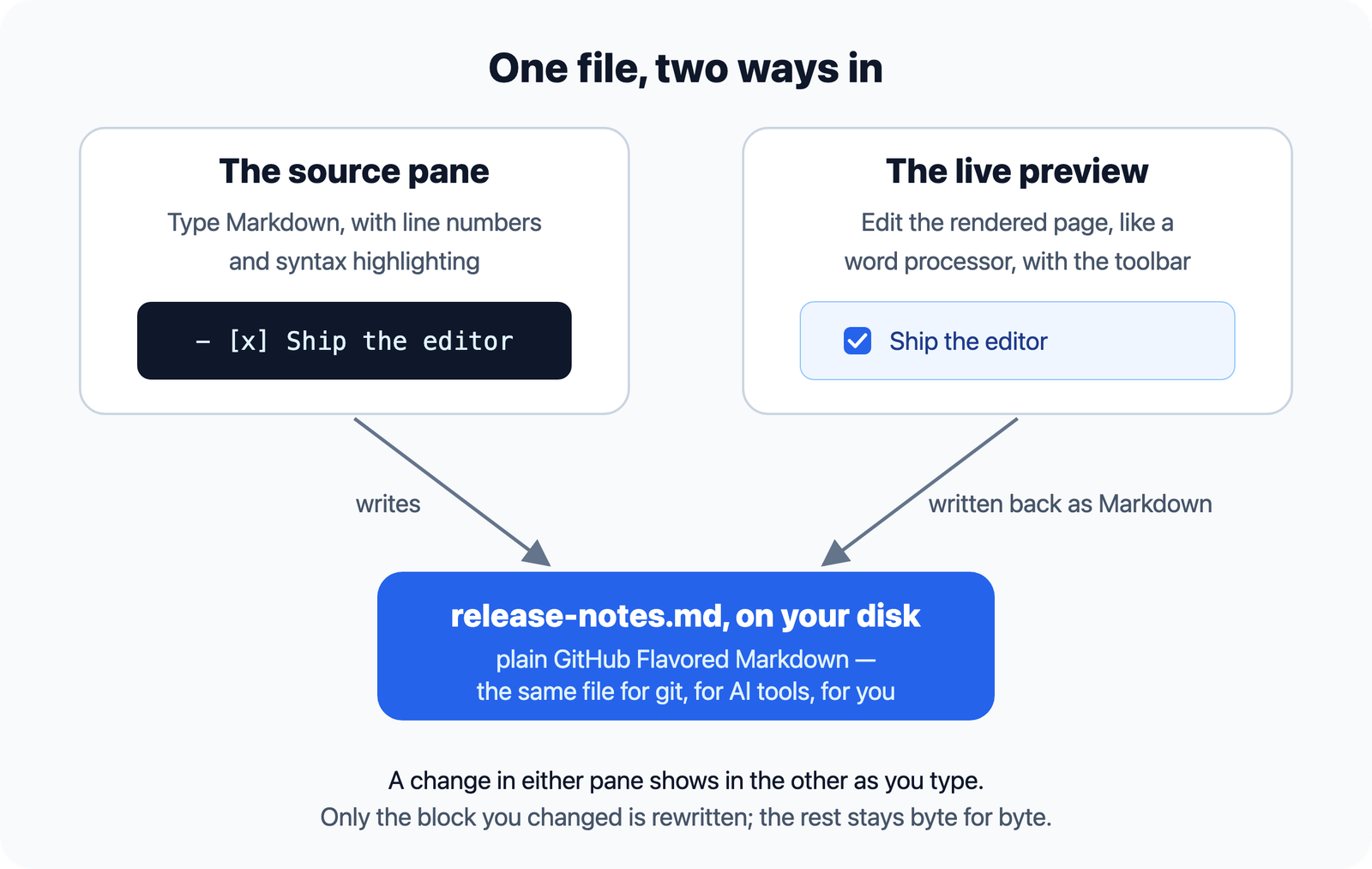
**A Markdown editor with live preview shows your document twice — the Markdown source and the page it renders to — and Prisment lets you type in either one.** Change a word in the rendered page and the Markdown updates; type Markdown and the page updates. Either way, what is saved is one plain `.md` file, clean enough for git and for any AI tool that reads it. You can try it now in the [online Markdown editor](https://prisment.io/markdown-editor/): it runs in your browser, with nothing to install and no account.
## 1. What does a split view with live preview give you?
**Immediate feedback without giving up plain text: you see the finished document while you write, and the file stays Markdown.** A plain editor makes you imagine the result; a rich-text editor stores the result in a format git and AI tools read badly.
| You want | What the editor does |
| :--- | :--- |
| To see the result while typing | Tables, [Mermaid diagrams](https://prisment.io/mermaid-editor/), math and callouts redraw as you type |
| To fix something without hunting through source | Click the sentence in the preview and edit it there |
| A clean file for git | Only the block you changed is rewritten |
| A file an AI tool reads well | Plain GitHub Flavored Markdown, never a proprietary format |
## 2. How does the split editor work: one file, two ways in?
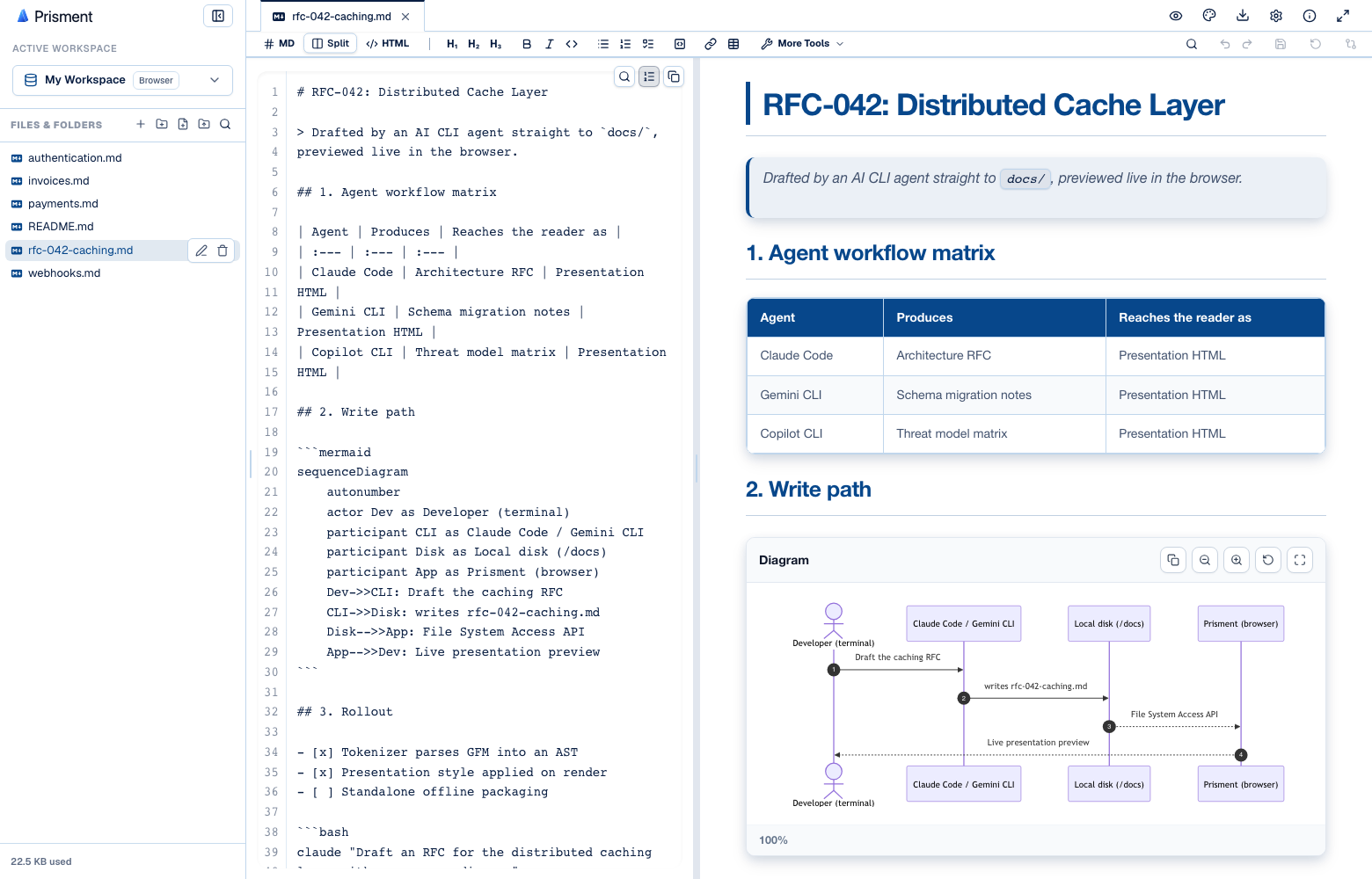
**Both panes edit the same `.md` file: the source as Markdown, the preview as a rendered page, each updating the other as you type.** A Markdown file opens on the rendered page; the **MD / Split / HTML** switch above the document shows the source alone, both panes side by side, or the page alone. On a narrow screen the panes stack.
## 3. What does an edit in the preview do to your Markdown?
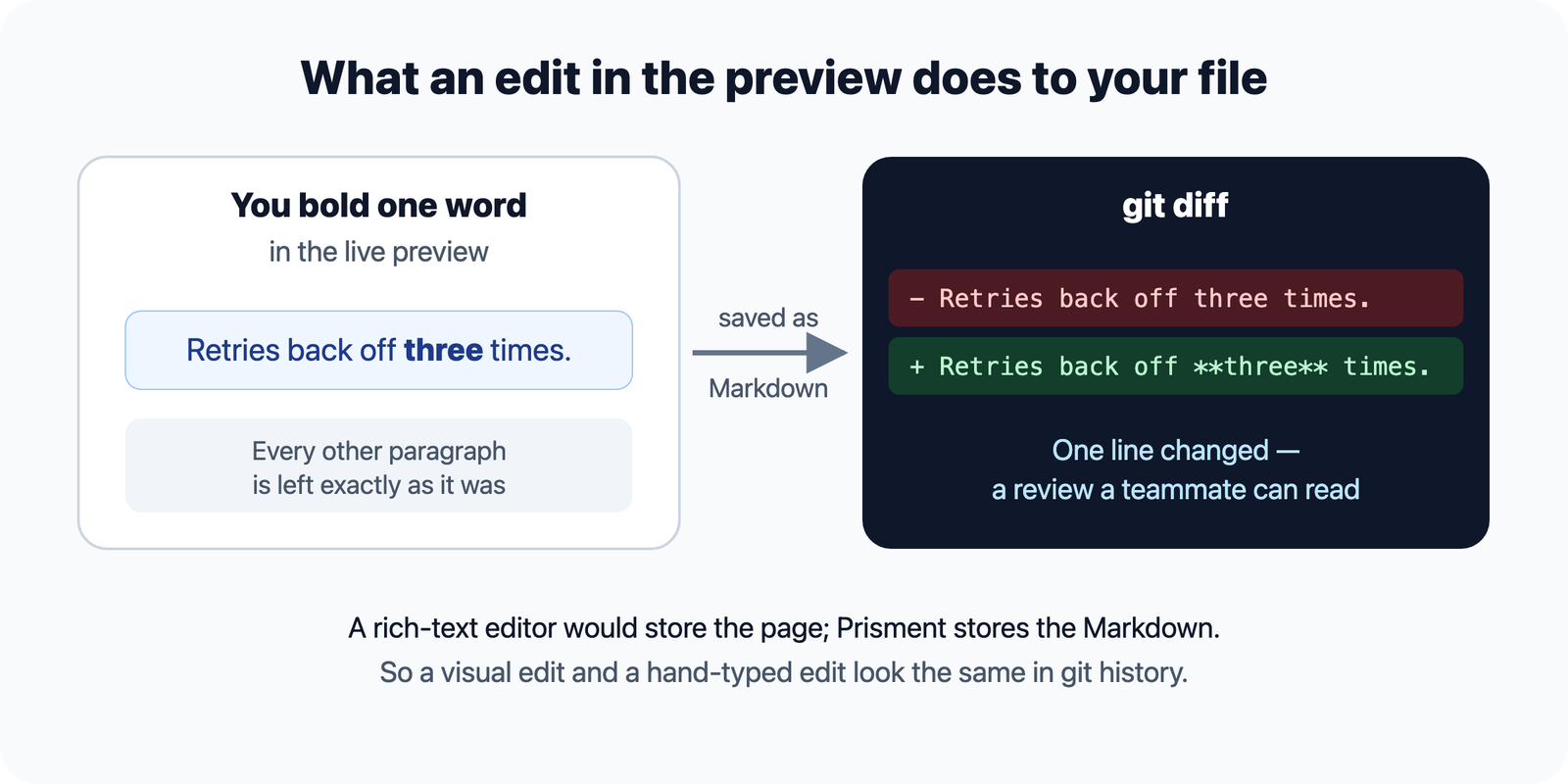
**It becomes ordinary Markdown in the one block you changed, and nothing else in the file moves — so a visual edit looks exactly like a hand-typed one in git history.** A rich-text editor stores the rendered page and its history is noise; an editor that rewrites the whole file from its preview on every save produces a diff nobody can review.
| | Markdown in a plain editor | Rich-text editor | Two-way Markdown editor |
| :--- | :--- | :--- | :--- |
| **What is saved** | Plain `.md` | The rendered page, often proprietary | Plain `.md` |
| **Git diffs** | Clean, line by line | Hard to read, conflict-prone | Clean, line by line |
| **Seeing the result** | In a separate preview | As you type | As you type |
| **Syntax to learn** | All of it | None | None, if you work in the preview |
| **Reading by AI tools** | Native and compact | Needs converting first | Native and compact |
## 4. How do you write with live preview?
**Open the editor, choose Split, and write on whichever side suits you — the file on disk is the same either way.**
1. **Open the editor.** Go to [prisment.io/markdown-editor](https://prisment.io/markdown-editor/), or open the [free desktop app](https://prisment.io/download/), and open a folder or a `.md` file — or start from the welcome document.
2. **Choose Split** in the MD / Split / HTML switch.
3. **Write in either pane.** Type Markdown, or click into the preview and type as in a word processor. The toolbar works in whichever pane you are in.
4. **Save the file** with Cmd/Ctrl + S. In a folder you opened, that writes the `.md` file on your disk.
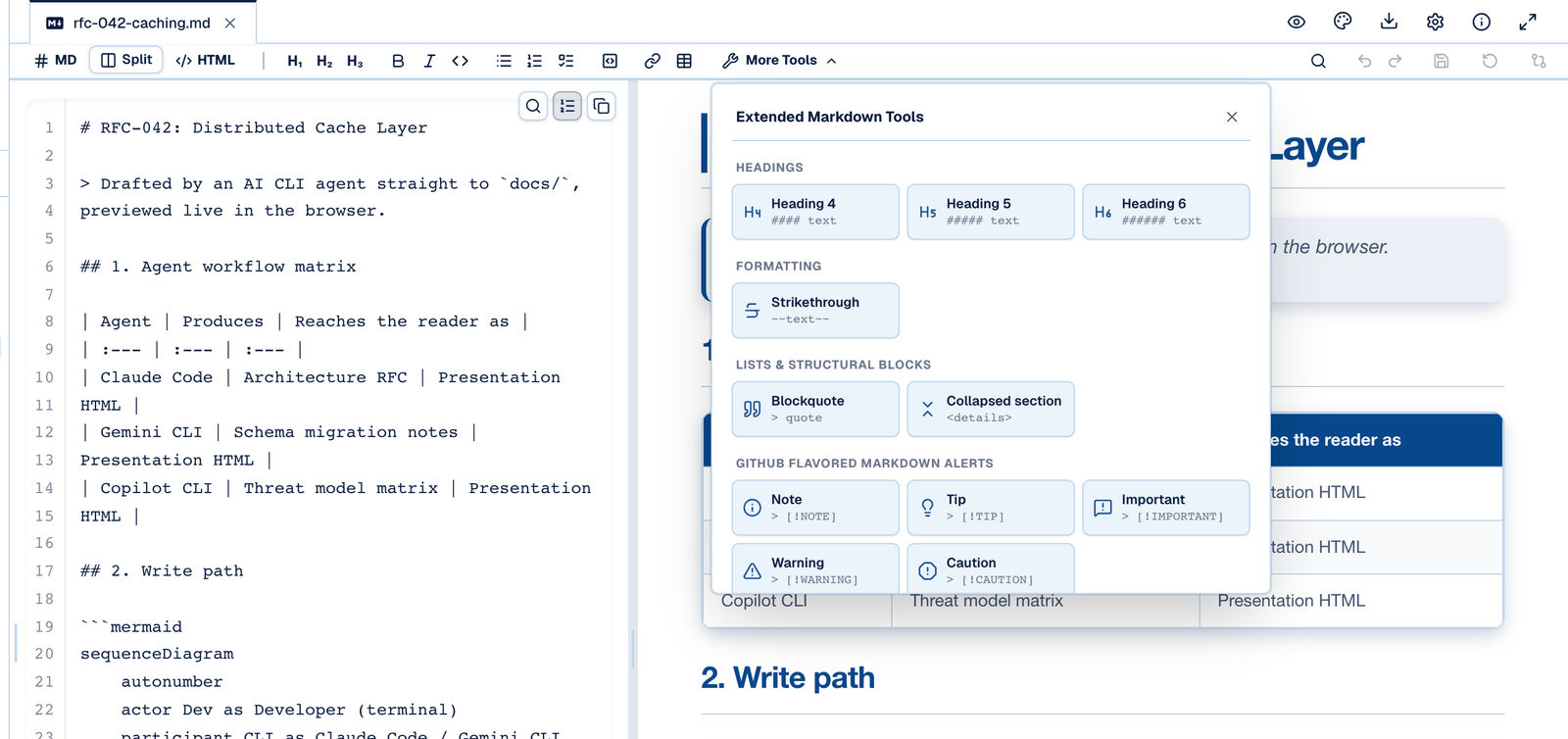
The toolbar turns structure into menu items — headings, callouts, collapsible sections, tables, diagrams — and what lands in the file is still ordinary Markdown. [The formatting toolbar](https://prisment.io/help/#the-formatting-toolbar) lists every item.
## 5. Where does Prisment's preview differ from other previewers?
**Three behaviours surprise people who arrive from VS Code or GitHub, and all three are deliberate.** A single newline is a line break, as chat and AI-written Markdown expect; `---` directly under a line of text makes that line a heading; and a few popular extensions such as `==highlight==` are shown as written. Footnotes, task lists, tables and math all render. The full list, with the setting that joins wrapped lines into paragraphs, is in the guide: [How Prisment differs from other Markdown tools](https://prisment.io/help/#how-prisment-differs-from-other-markdown-tools).
## 6. How do mixed teams get the most from it?
**Keep the source in git as plain Markdown, let each person work in the pane that suits them, and set the look once for everyone.**
- **Keep the repository as the source of truth** — `.md` or [`.mdx`](https://prisment.io/mdx-editor/) files — and give non-technical contributors the preview rather than a separate tool with its own format.
- **Separate content from presentation.** [Build the team's style once](https://prisment.io/blog/how-to-turn-markdown-into-presentation-html/) and every document and export inherits it.
- **Let AI agents write into the same folder.** [Their Markdown renders as it saves](https://prisment.io/blog/bridging-ai-cli-readability-gap-live-presentation-preview/), and [Word, PDF and Excel files convert](https://prisment.io/blog/word-pdf-excel-to-markdown-and-csv/) to files this editor opens.
| Tool | For |
| :--- | :--- |
| [Online Markdown editor](https://prisment.io/markdown-editor/) | Writing and editing with live preview, in the browser |
| [Markdown viewer](https://prisment.io/markdown-viewer/) | Reading long documents with an outline |
| [README viewer](https://prisment.io/readme-viewer/) | Checking how a `README.md` reads before you push |
| [Mermaid live editor](https://prisment.io/mermaid-editor/) | Diagrams from text, redrawn as you type |
| [Markdown to HTML converter](https://prisment.io/markdown-to-html/) | A styled, standalone page from any `.md` file |
## Questions this article answers
### What is a Markdown editor with live preview?
An editor that shows a document’s Markdown source and its rendered result side by side, updating the preview as you type. In Prisment both sides are editable: type Markdown in the source pane or edit the rendered page directly, and every change is written back into the same plain .md file.
### Can I edit the preview instead of the Markdown?
Yes. In Prisment’s editor, click into the rendered page and type as you would in a word processor — headings, lists, tables, callouts and code blocks included. The change is written back into the Markdown source, and Split shows it straight away.
### Does editing the preview produce messy Markdown?
No. Prisment writes a visual edit back as standard GitHub Flavored Markdown and rewrites only the block you changed; every other part of the file stays byte for byte as it was, so the git diff of a visual edit is the line you touched.
### Why does my Markdown look different in Prisment than in another previewer?
Most often because Prisment treats a single newline as a line break, as chat and AI-written Markdown expect, where CommonMark previewers join the lines into one paragraph. A line directly above --- becomes a heading, and a few extensions such as ==highlight== are shown as written rather than rendered.
### Is there a Markdown editor and previewer that keeps my files private?
Prisment renders and edits Markdown on your device, in the browser or in the free desktop app, and does not upload your documents: a folder you open is read and written in place. The website itself uses analytics; the privacy policy says what is measured.
### Should a team write in Markdown or in a rich-text editor?
Keep the Markdown and give everyone the view they work best in. With a two-way editor, developers keep plain .md files for git and AI tools, and teammates who do not write Markdown edit the rendered page; both are editing the same file.