# Share Markdown as Standalone HTML, an Offline Wiki or a PDF
> Which Prisment export to send: one styled HTML page, an interlinked wiki, a ZIP of pages, the source files, or a PDF — what each produces and when to pick it.
- Canonical: https://prisment.io/blog/standalone-html-export-options-explained/
- Published: 2026-08-25
- Updated: 2026-10-07
- Checked against: Prisment v2.0.6
- Author: Prisment Team (Documentation & Developer Tooling)
- Publisher: Prisment, https://prisment.io/
**Choose HTML Page to send one document, Interlinked Wiki for a set that links together, All HTML Pages for independent files, All Source Files for a handover, and PDF Document when the copy must be paper or work with no network at all.** A Markdown file is a good place to write a document and an awkward one to send: the reader may have no viewer, will not see your diagrams as diagrams, and judges the work by how it opens.
| You want to send… | Choose | You get |
| :--- | :--- | :--- |
| One document | **HTML Page** | One styled `.html` file |
| One document, as paper or an attachment | **PDF Document** | A typeset, paginated PDF |
| A folder of documents that link to each other | **All Interlinked Wiki** | A ZIP holding a browsable offline site |
| A folder of independent documents | **All HTML Pages** | A ZIP of standalone pages |
| The editable originals | **All Source Files** or the source card | The files exactly as they are |
## 1. Exporting one document
**The Single File tab offers three outputs: a styled HTML page, the document's own source, or a PDF.** A **Target document** dropdown at the top picks which open file you are exporting.
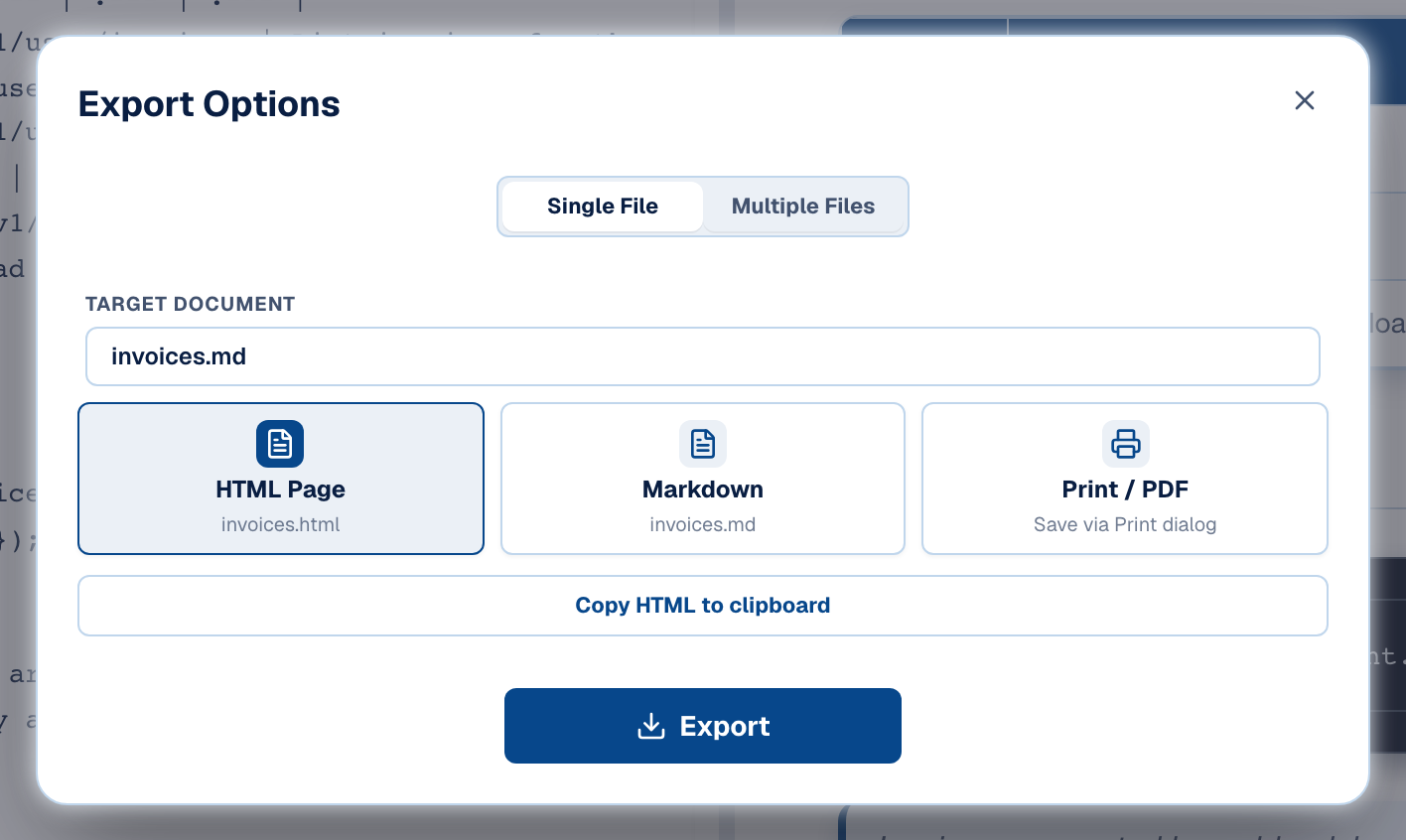
**HTML Page** is the one to send: the page carries the document and the presentation style on screen — see [turning Markdown into a presentation-grade page](https://prisment.io/blog/how-to-turn-markdown-into-presentation-html/). **PDF Document** is a typeset copy — paginated, with a running header and page numbers, in the style's colours and typography. The desktop app saves the PDF file through a save panel; a browser opens its print dialog, where *Save as PDF* sits beside your printers. Formats that are not typeset, such as plain text, offer **Print / PDF** instead, and a spreadsheet grid offers neither, because printing it would not produce the document.
## 2. Exporting a whole folder
**The Multiple Files tab ticks files from the tree and offers three ZIPs: an interlinked wiki, independent pages, or the sources.** The filter field narrows the tree by name or a pattern such as `*.md`, and **Select All** then acts on what the filter shows.
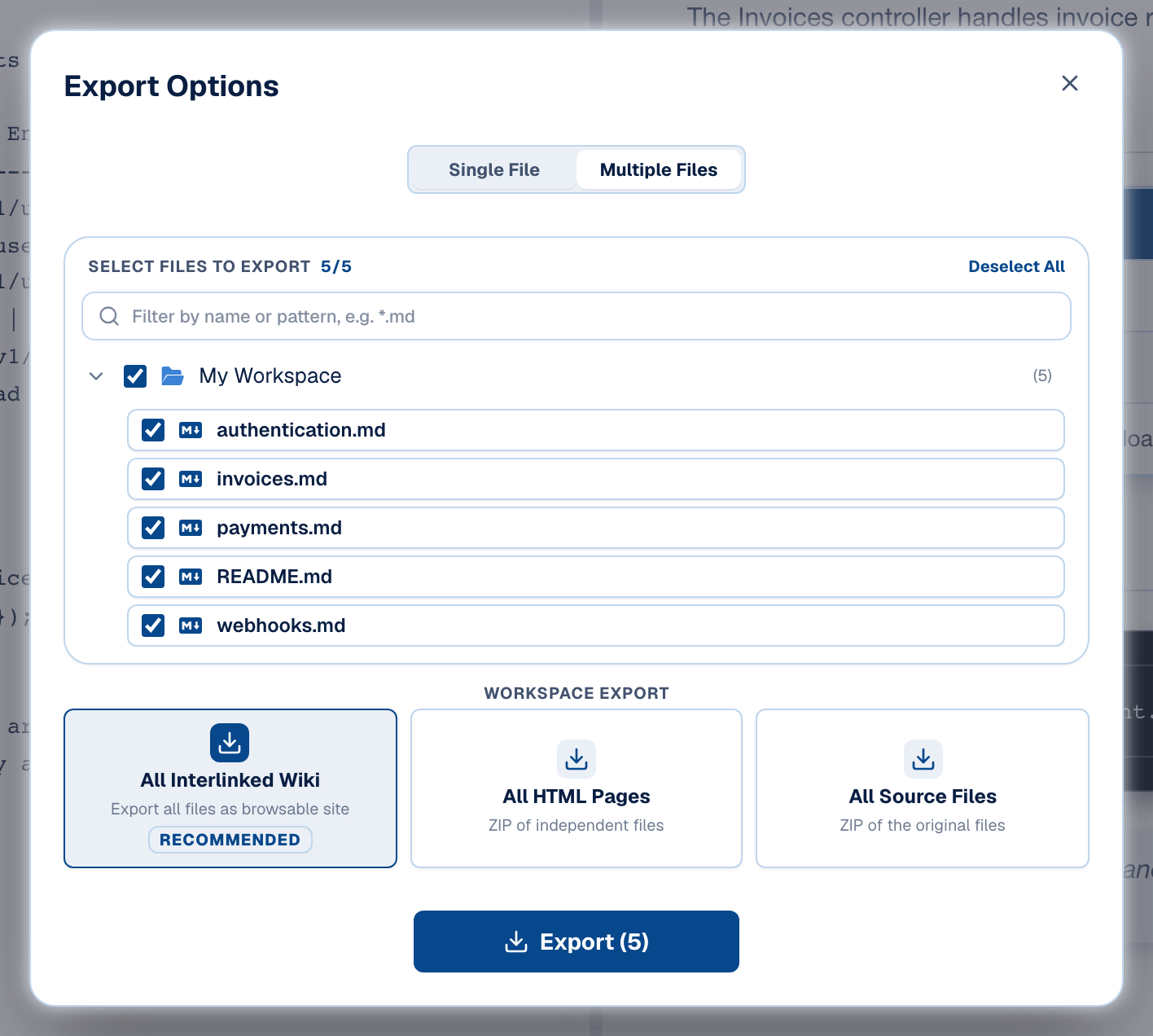
- **All Interlinked Wiki** is for documents that reference each other — an onboarding guide, an API handbook. Each page carries a file-tree sidebar, and links are rewritten to the exported pages instead of `.md` files that would 404. [A design pack](https://prisment.io/blog/solution-design-docs-with-diagrams-and-openapi/) exported this way becomes one site.
- **All HTML Pages** is for independent documents — a folder of specs, one report per client. Each page stands alone.
- **All Source Files** skips HTML and hands over the originals, which is also how to get files out of a browser workspace that lives only in the app.
## 3. What is inside an exported page — and what it needs
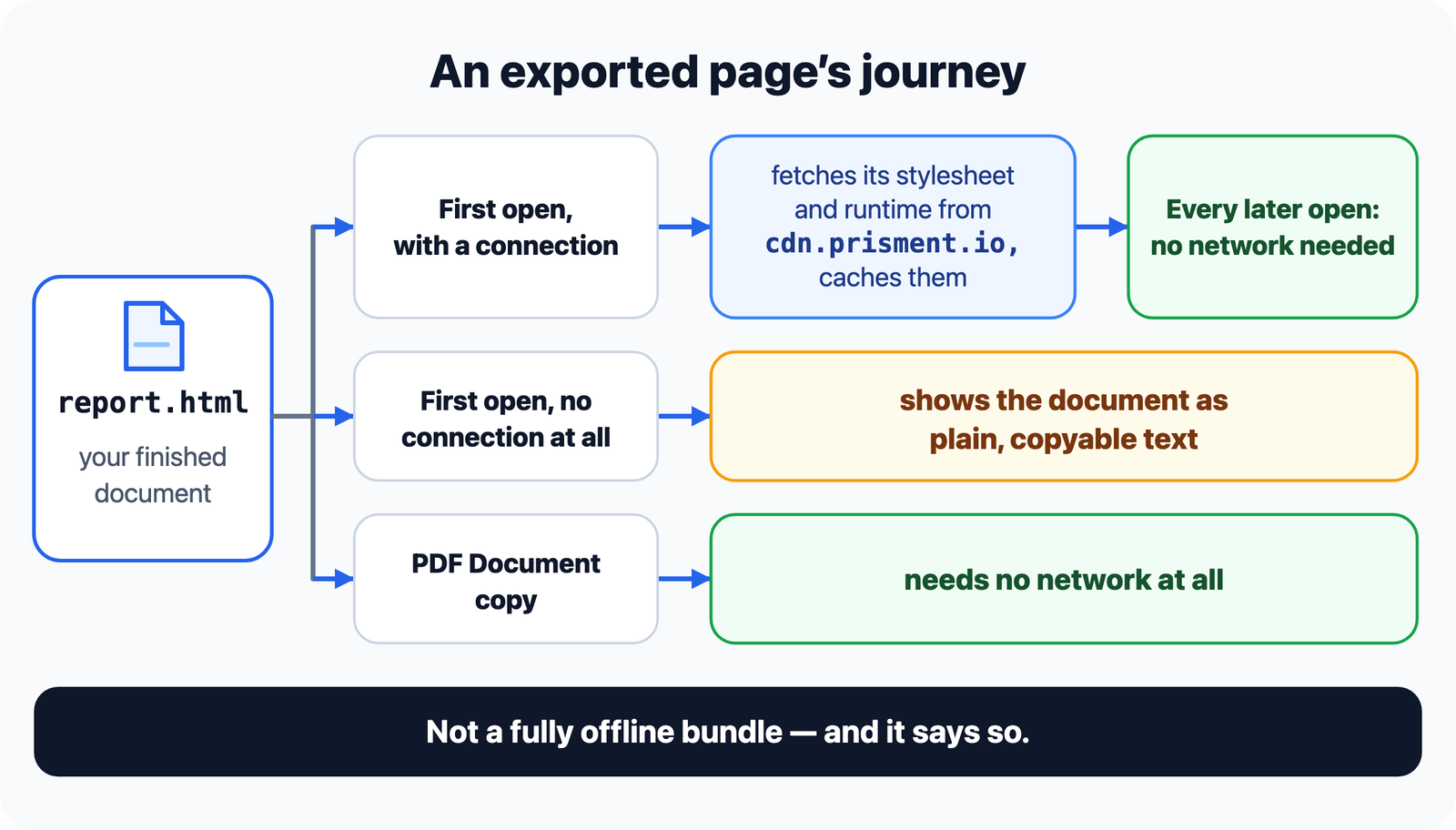
**An export is one HTML file carrying your finished document; its stylesheet and diagram runtimes come from `cdn.prisment.io` the first time it is opened, then stay cached.** So it is not a fully offline bundle, and Prisment says so rather than letting you find out on a plane.
The header, sidebar and footer are not stamped into every file; they are built when the page opens, which is why a short document stays a small file. The page carries no account, no analytics and no Prisment branding, and **Download** in its header hands back the original file you exported from.
## 4. Send it
**Email it, attach it to a chat, or host it anywhere that serves files** — an object-storage bucket, a static-site host, a shared drive. A wiki ZIP is unpacked into the host, or handed over as it is: the reader double-clicks `index.html`.
Every export option, and what an exported page can do, is in the guide: [Sharing your work](https://prisment.io/help/#sharing-your-work).
## 5. Try it
**Open the [workspace](https://prisment.io/workspace/), press Export on the sample project, and try the wiki and the single page.** It is free, needs no account, and the export is built on your device.
## Questions this article answers
### What is the difference between All HTML Pages and All Interlinked Wiki?
All HTML Pages gives you a ZIP in which every document is a fully standalone page — hand someone one file out of it and it still opens and still looks right. All Interlinked Wiki exports the same files as a browsable site: each page carries a file tree sidebar, and links between your documents are rewritten to point at the exported pages instead of .md files that would 404.
### Does an exported HTML document work offline?
Mostly. It fetches its stylesheet and diagram runtimes from cdn.prisment.io the first time it is opened and caches them, after which it opens with no network requests at all. Opened for the very first time with no connection, it still shows the complete text rather than a blank page. For a copy that needs no network at all, use the PDF Document export.
### Can I save a Prisment document as a PDF?
Yes. On the Export dialog's Single File tab, choose PDF Document. The desktop app saves a typeset PDF file through a save panel; a browser opens its print dialog, where you choose Save as PDF. Prisment prints the document on its own — the file tree, toolbar and, in split view, the Markdown source are left off the page — with page numbers and the presentation style's colours and typography.
### Can I export the original Markdown as well as the HTML?
Yes. On the Multiple Files tab, All Source Files gives you the selected files in a ZIP exactly as they are — Markdown, CSV, YAML, JSON and HTML alike. On the Single File tab, the second card downloads the open file's own source. Every exported HTML page also carries its source and hands it back through the page's Download control.