Live Markdown Preview for Claude Code, Gemini CLI and Copilot
Your terminal agent writes Markdown into a folder. Prisment renders each file as it is saved — tables, diagrams and math included — and lets you correct it in place.
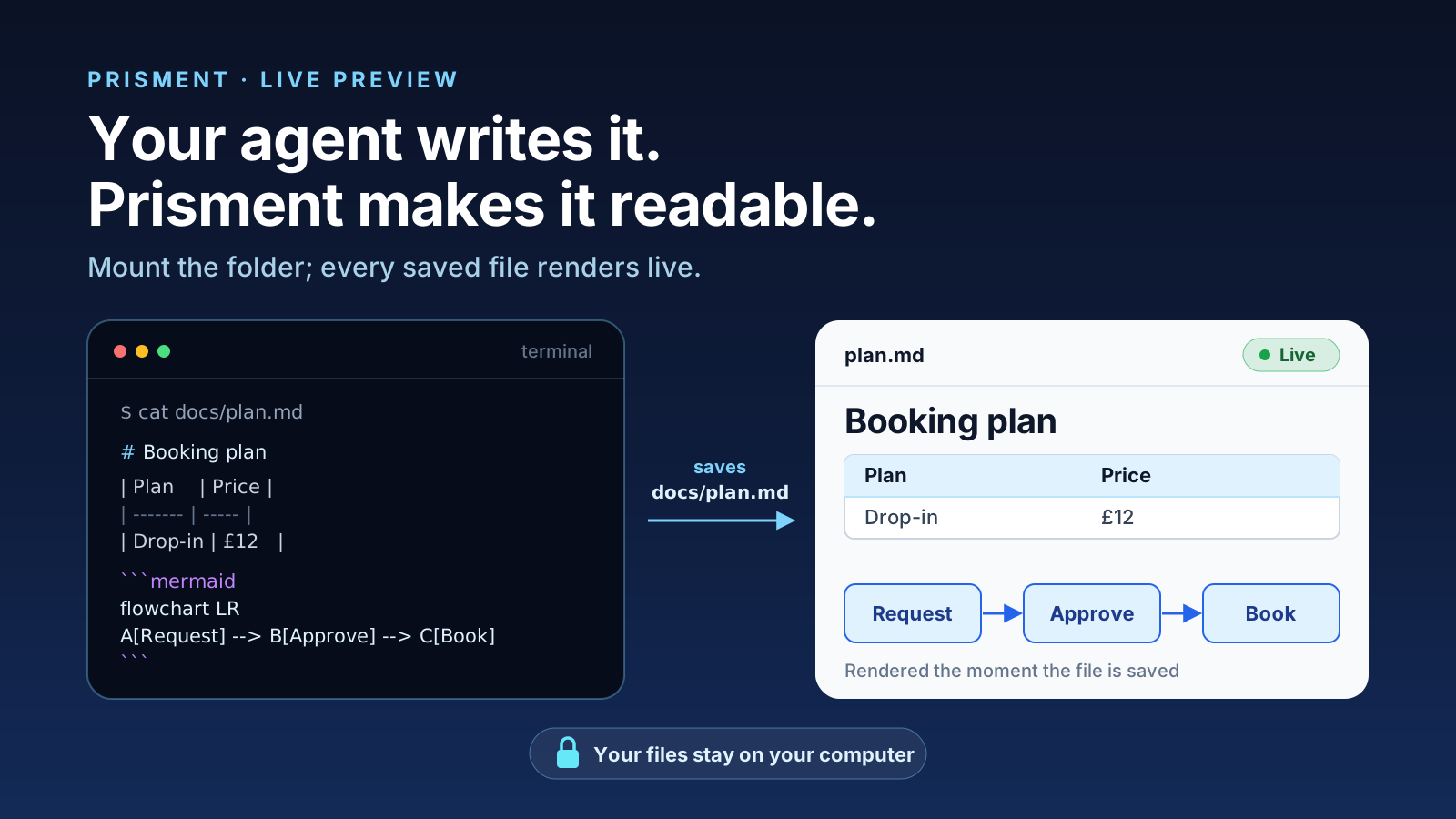
Mount the folder your AI agent writes into and Prisment renders every file the moment it is saved — styled tables, live diagrams, math — while your terminal workflow stays exactly as it is. Claude Code, Gemini CLI, GitHub Copilot CLI and Aider all write Markdown, which a terminal shows as raw pipes, dashes and diagram source. Prisment shows the document the agent meant, on your own computer (how your documents are handled).
1. What the agent leaves in your terminal
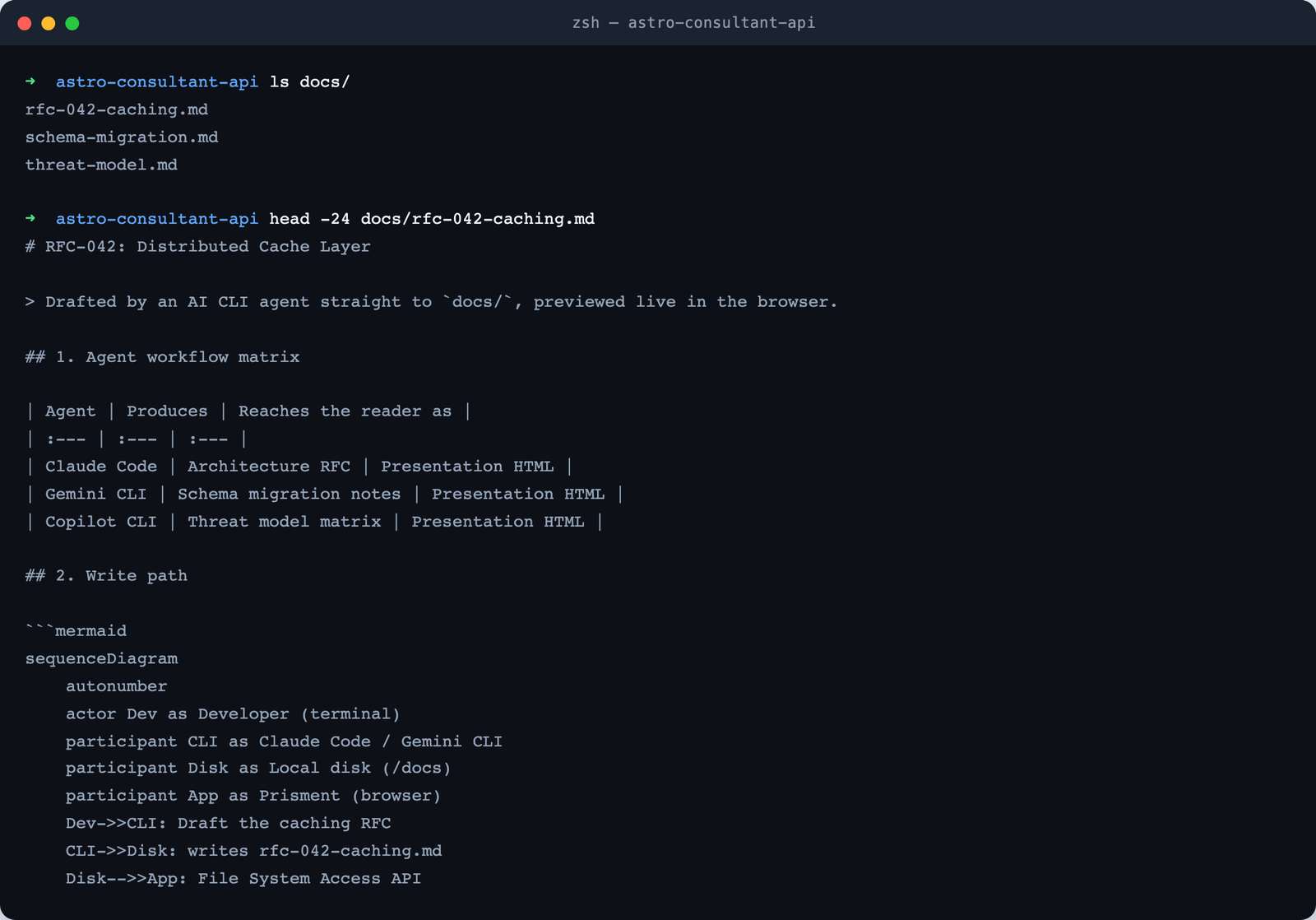
The best of an agent's work — a table, a sequence diagram, a formula — reaches you as raw syntax that you have to compile in your head. That is fine for you and useless for the product manager, security reviewer or executive who has to read it.
| In a terminal | In Prisment | |
|---|---|---|
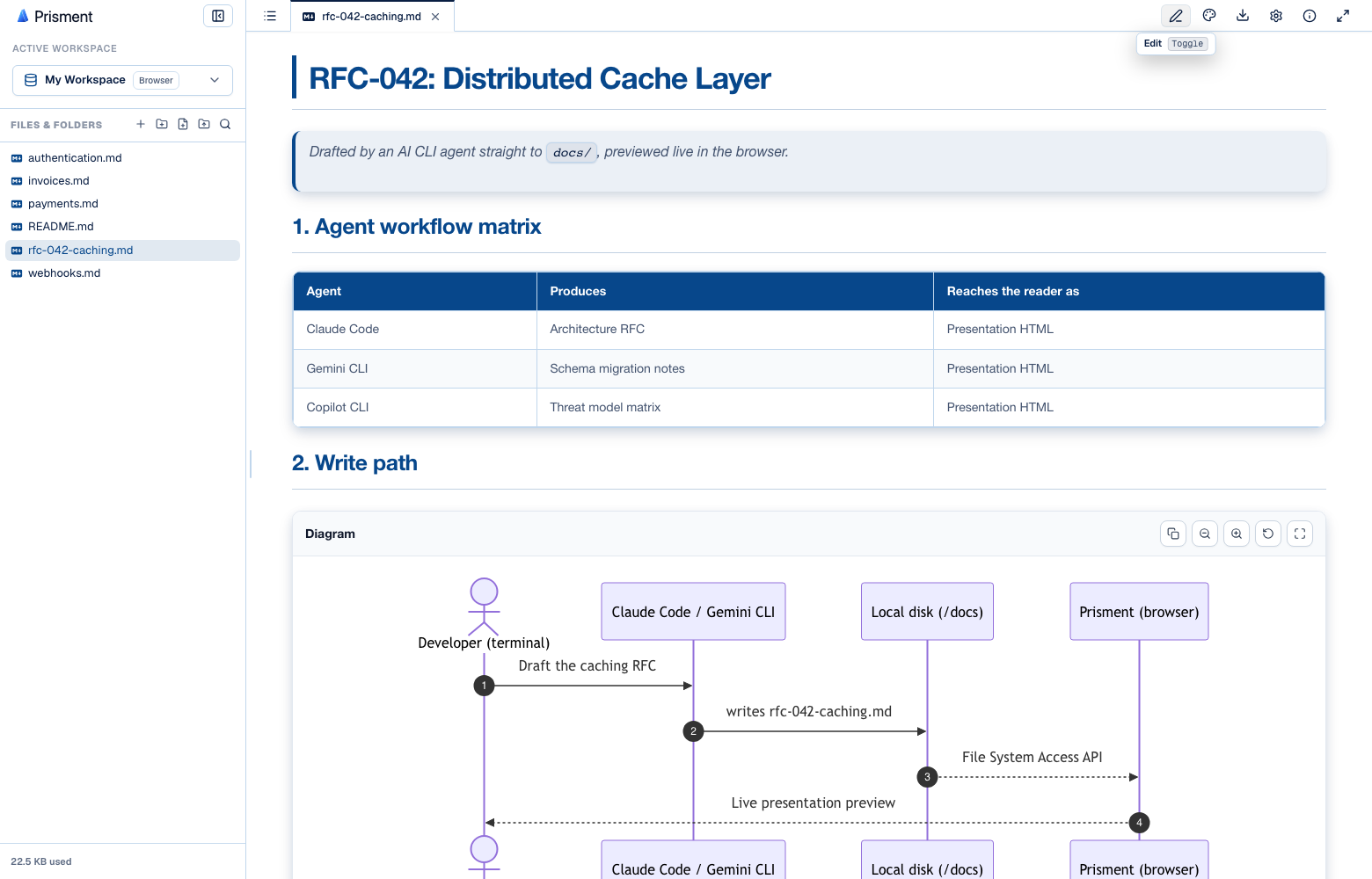
| Tables | Pipes and dashes | Styled, banded, readable |
| Mermaid diagrams | Forty lines of source | A diagram you can pan and zoom |
| Math | $$\sigma = \sqrt{…}$$ |
Typeset with KaTeX |
2. How the preview stays live
Mount the folder once; after that, every file the agent saves renders on its own. The browser's File System Access API connects the two, so there is no upload and no sync service in the path.
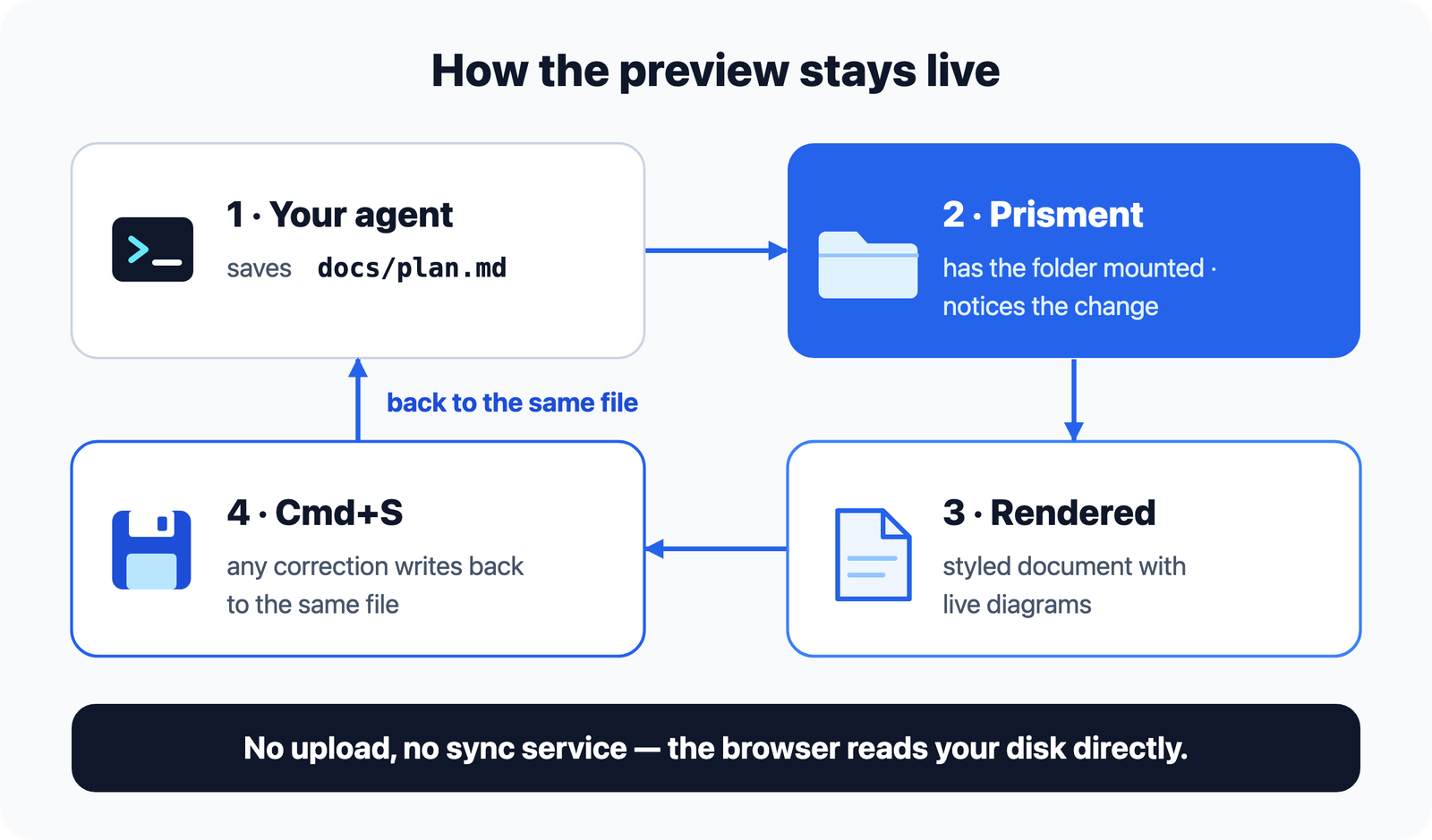
- Open the folder your agent writes into. Press Open Local Folder in the desktop app or a Chromium browser such as Chrome or Edge, and pick
docs/or wherever the agent saves. - Run your agent as usual. Nothing about the terminal changes.
- Read each file as it lands. A file you have not touched follows the disk; one with unsaved edits of yours asks first, with Load Disk File or Keep Draft.
- Inspect and correct. Zoom and pan the diagrams from their own toolbar, and edit either pane.
Safari and Firefox cannot mount a folder live; Open Folder in the Files sidebar copies it in instead, and that copy does not follow the disk. The details are in Local disk sync.
3. Correct it where you read it
Both panes are editable, and Cmd/Ctrl + S writes the real file — so fixing a parameter name in the preview is fixing it in the agent's own file. Only the block you changed is rewritten, so the git diff of a visual edit is the line you touched. That is what lets a teammate who does not write Markdown correct the agent's output directly; the editor article shows how, and the guide covers the split editor.
4. Open one file from the terminal
With the desktop app installed, one command opens the file your agent just wrote, whether or not Prisment is already running.
| Platform | Command |
|---|---|
| macOS | open -a Prisment plan.md |
| Windows | "%LOCALAPPDATA%\Programs\Prisment\Prisment.exe" plan.md |
| Linux (Debian / Ubuntu) | prisment plan.md |
The guide has the AppImage command and a VS Code or Cursor task that opens the file in front of you: Open a file from a terminal.
5. Read it, then decide before the agent builds
A readable plan is where review starts. Before the agent builds from it, start a review: it lists what the agent changed since you last read, records what you decided and approved, and travels to your team through Git or a shared drive. To hand the result to someone without the repository, export it as one HTML file.
6. Try it
Open the workspace to explore a booking-app project — requirements an AI tool drafted, call notes, a flow diagram and an API contract — rendered the way an agent's folder would be, or mount your own. It is free, needs no account, and nothing you open is uploaded.
Frequently asked questions
How do I preview the Markdown that Claude Code or Gemini CLI writes?
Press Open Local Folder in the Prisment desktop app or a Chromium browser and pick the folder your agent writes into. When the agent saves a .md file, Prisment renders it — styled tables, live Mermaid diagrams and KaTeX math — without any change to your terminal workflow.
Is my code or documentation uploaded when I use Prisment with an AI CLI?
No. Prisment parses and renders your documents in your own browser or in the desktop app, and a folder you mount is read and written in place, so a document never travels to a server. The hosted website separately uses aggregate analytics, which the privacy policy describes.
Can I edit the agent's output and have it save back to disk?
Yes. The editor shows the rendered document, and Split puts the raw Markdown beside it; either side is editable. Cmd or Ctrl + S writes back to the real file, so the terminal agent and the visual editor work on the same file.
Does the preview work in Safari or Firefox?
Not as a live mount. Live folder sync needs the File System Access API, which the desktop app and Chromium browsers such as Chrome and Edge provide. In Safari and Firefox, Open Folder in the Files sidebar copies the folder's supported files into a workspace on your device; that copy does not follow the folder on disk.