Resize and Align Images in Markdown
Markdown has no image size. Prisment fits a picture by its shape, lets you size and align it with a click, and writes one short note after it.
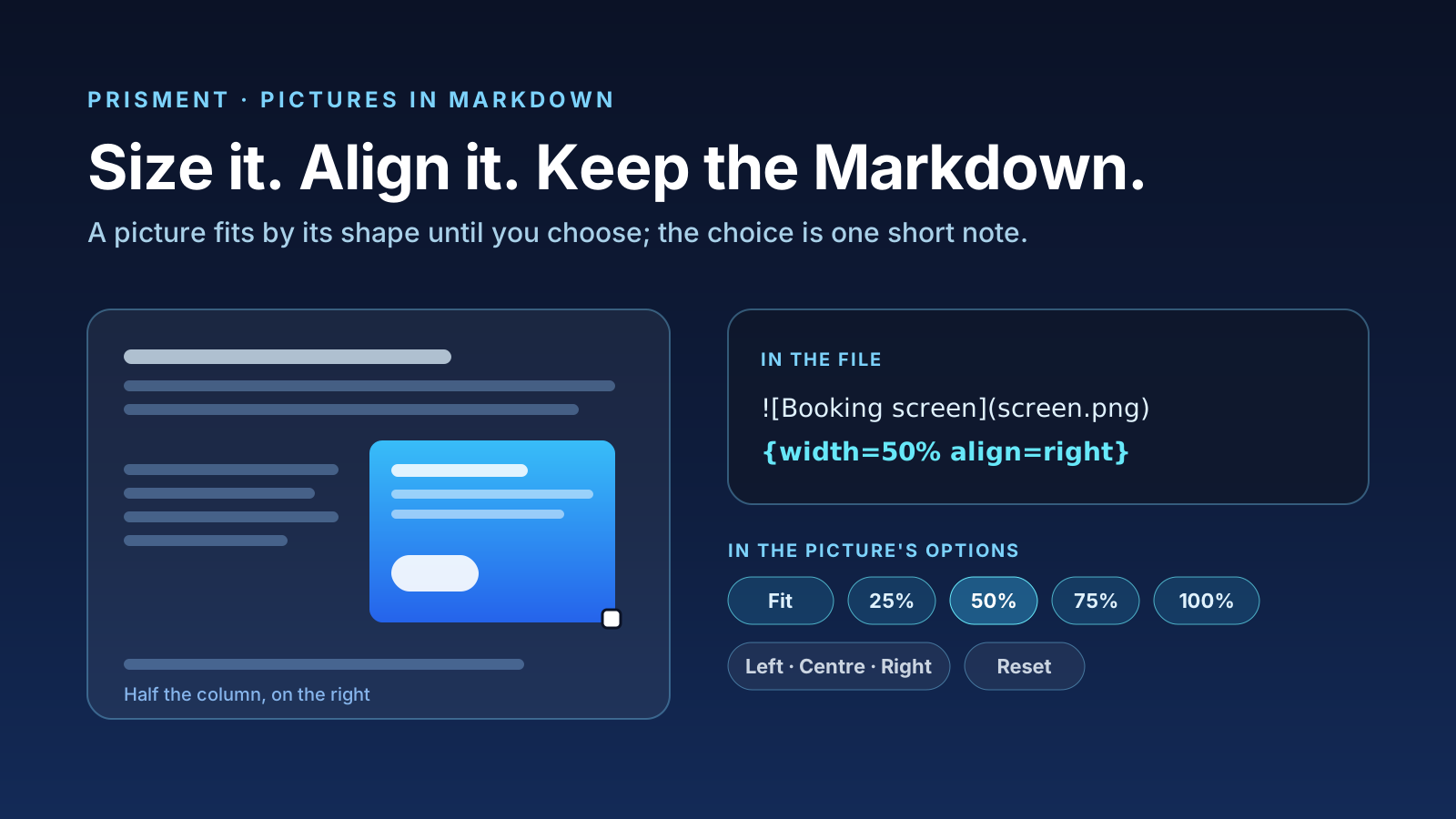
You resize and align an image in Prisment by clicking it, pressing Size and alignment and choosing a side and a size; Prisment writes the choice as a short note after the picture, such as {width=50% align=right}. Until you choose, a picture fits the page by its shape, so a tall phone screenshot no longer runs far down the page.
1. What does Markdown say about image size?
Nothing: neither CommonMark nor GitHub Flavored Markdown defines a width, a height or an alignment for an image. The syntax has an address, a description and a title, and that is all. GitHub's own advice is to write an HTML image tag with a width, which works there and in almost every renderer.
Tools that wanted a shorter form borrowed one convention: Pandoc, Djot, kramdown and Python-Markdown each have a way to put attributes in braces straight after the picture. Prisment uses that shape and reads the HTML form too.
| Form | Where it works | In Prisment |
|---|---|---|
{width=50% align=right} |
Tools that follow the brace convention; elsewhere the braces show as text | Written when you size a picture, and read |
<img src="plan.png" width="300"> |
GitHub and almost every renderer | Read the same way |
Neither form is part of the Markdown standard, which is why Prisment writes the note only when you choose a size, and never to a picture you leave alone.
2. What size does a picture get if you choose nothing?
It fits the page by its shape: never wider than the text, never taller than most of a screen, and never enlarged. The rule is one box, and the picture's own proportions decide which side of it holds.
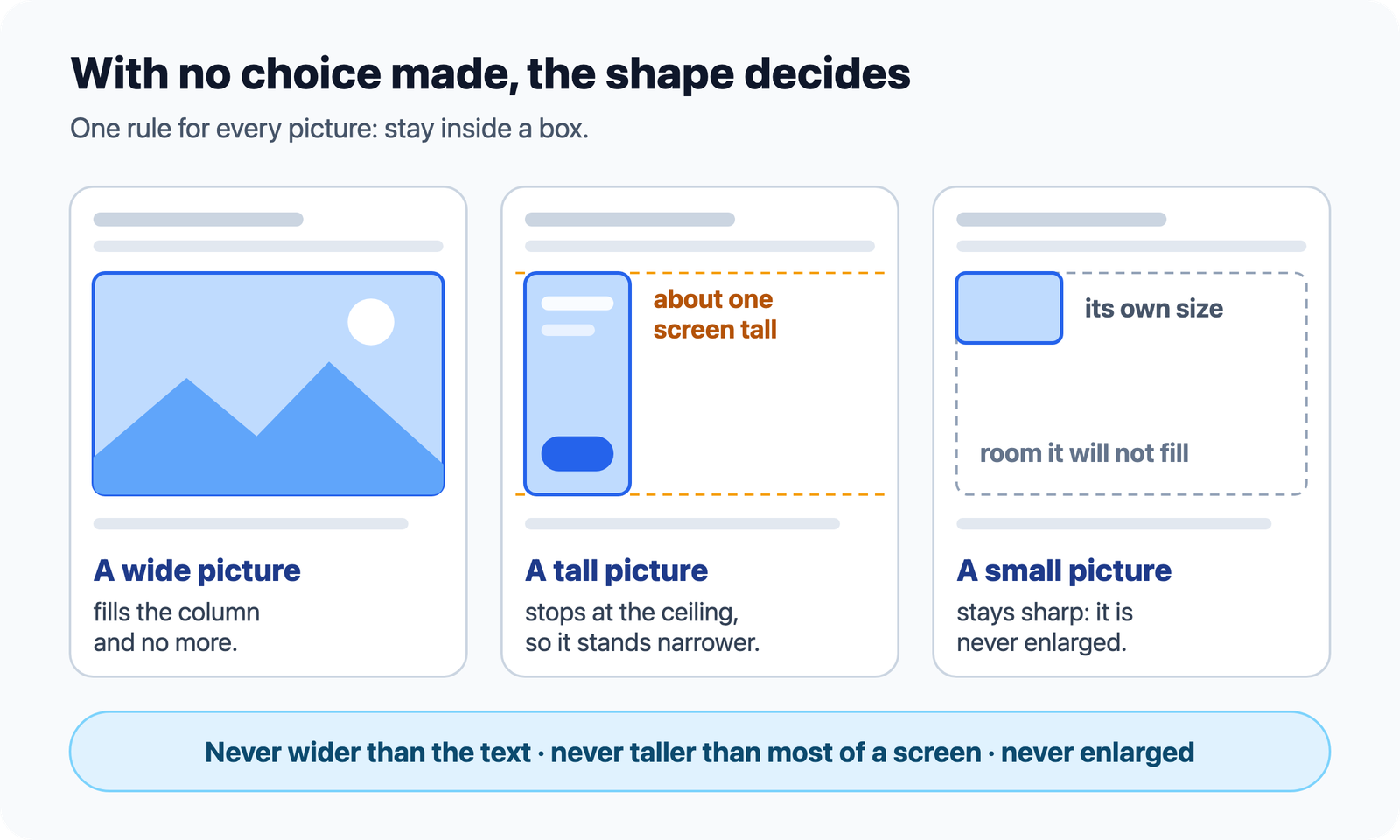
A wide screenshot fills the column. A phone screenshot, which would otherwise run far down the page, stops at the ceiling and stands narrower. A small icon stays its own size and stays sharp. The rule exists because a tall dialog capture in one of our own articles filled more than a laptop screen at the width of the text column.
It is plain page styling, so an HTML export and a printed page draw it the same way. In your documents a picture starts on the left; on this site's own pages, in the middle.
3. How do you resize and align a picture?
Click the picture and press Size and alignment, the sliders icon in its options. It works in Read and in Edit, for a picture in any Markdown document you can edit.
- Click the picture. Its options appear at its corner: zoom, full screen, copy, and Open for a file in your workspace.
- Press Size and alignment. A panel opens under the row.
- Pick a side and a size. Left, centre or right; Fit, 25, 50, 75 or 100 % of the column; or move the slider for anything between. Dragging the small square on the picture's corner resizes it too.
- Press Reset to put both back to the default fit.
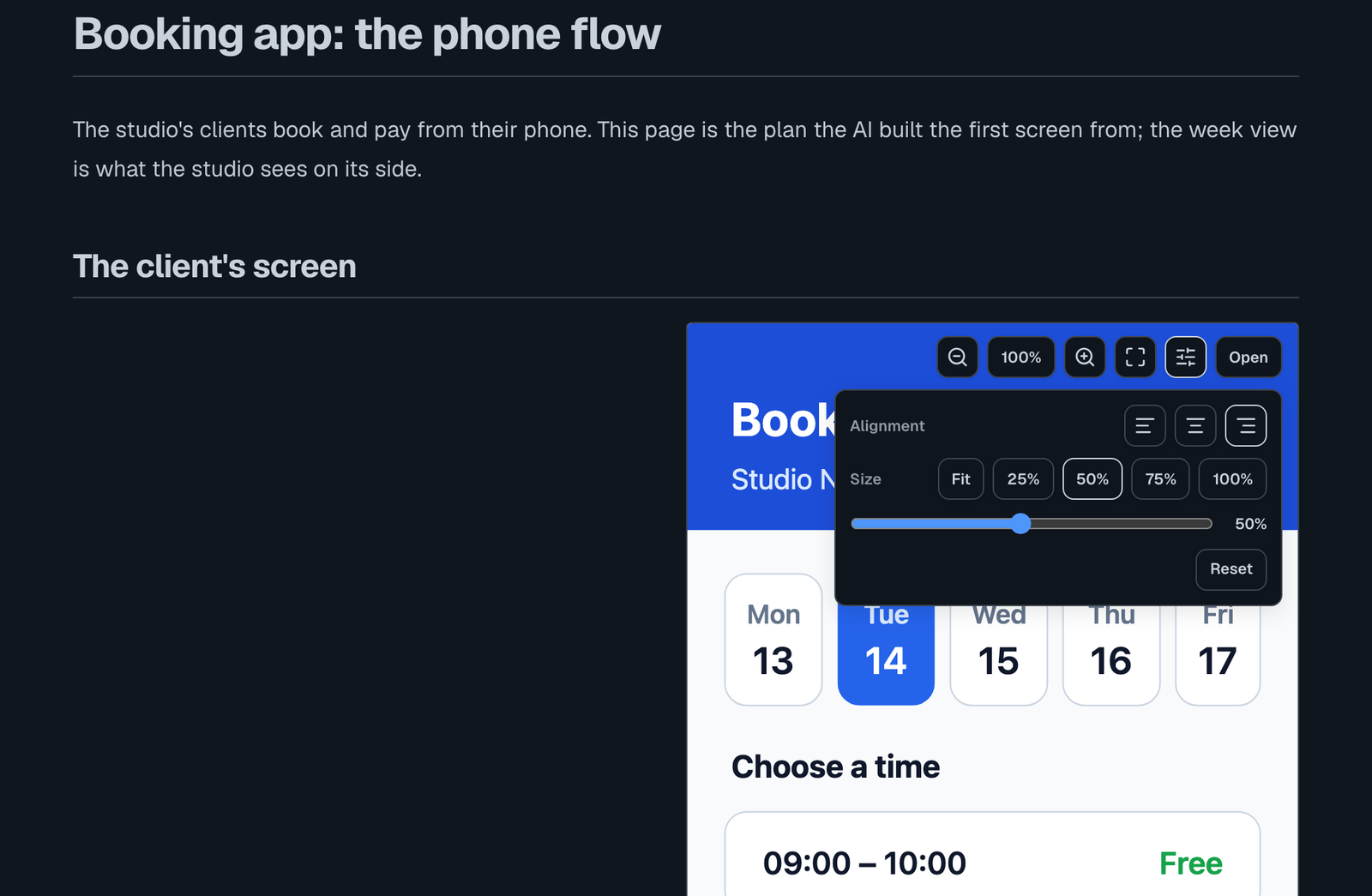
A picture keeps its proportions whatever you do. The change is an edit like any other: unsaved until you save, and in the undo history. Every option is in the guide's Picture size and alignment chapter.
4. What does Prisment write into the file?
One short note straight after the picture, and nothing anywhere else. Switch to Edit and Split to see it.
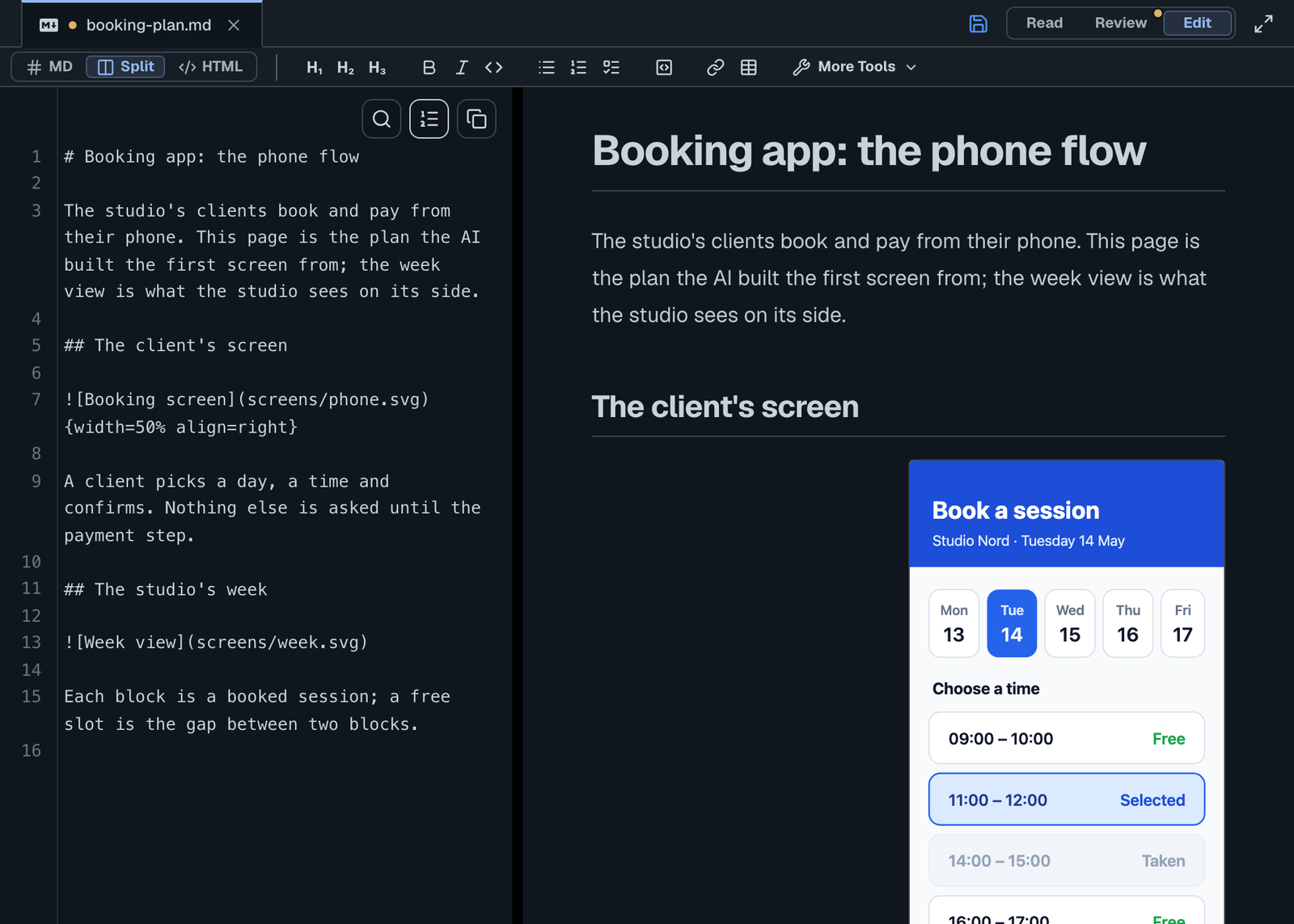
The note takes three keys, written in this order:
| Key | Value | What it does |
|---|---|---|
width |
Pixels (300) or a share of the column (50%) |
Sets the width; the height follows the proportions |
height |
Pixels | Sets the height; beside a width the picture keeps its ratio |
align |
left, center or right |
Puts the picture on that side, on its own line |
{width=50% align=right}
Anything else in the braces — a word Prisment does not know, a value that is not valid, a key written twice — is left as the text it was, so nothing in a document changes meaning or goes missing.
5. Percentage or pixels?
Use a percentage for a picture that should follow the page, and whole pixels for one that should keep a width. A share is a share of the text column, so it narrows with the window. A pixel width is fixed but never wider than the column, so on a phone it simply fills it.
6. What does it not do?
It does not wrap text around a picture, crop it or add a caption. A picture with a side is a block on its own line, with the text above and below it. The picture file is never touched: only how the page draws it changes.
Frequently asked questions
Can you resize an image in Markdown?
Not in standard Markdown: neither CommonMark nor GitHub Flavored Markdown has a size or alignment for an image. The portable answer is an HTML image tag with a width, which GitHub and most renderers accept. Prisment also reads and writes a short note after the picture, such as {width=50% align=center}, and sets it for you when you click the picture and press Size and alignment.
How do I center an image in Markdown with Prisment?
Click the picture, press Size and alignment and choose the middle alignment button. Prisment writes align=center in braces straight after the picture. A picture with no choice made sits on the left of the page in your documents.
Will the size show in GitHub or another Markdown tool?
The picture will, but not its size: a tool that does not know the note shows the braces as text after the picture. For a file that must look right on GitHub, write an HTML image tag with a width, which Prisment reads the same way. Prisment never changes the picture file itself.
What size does a picture get if I choose nothing?
It fits the page by its shape: never wider than the text column, never taller than most of a screen, and never enlarged past its own size. A wide screenshot fills the column, a tall phone screenshot stands narrower, and a small picture stays small. Nothing is written into the Markdown for this.
Does an exported page keep the size and alignment?
Yes. An HTML export and a printed page draw the picture with the same rules as the workspace, so a picture sized to half the column and aligned right is half the column and on the right there too.