SVG Files in Prisment: See the Picture, Convert It, and Let Your Local AI Change It
Open an SVG as a picture, convert it to PNG, JPG or WebP at up to 3×, copy it as an image or a Markdown link, and let your local AI change it — all on your device.
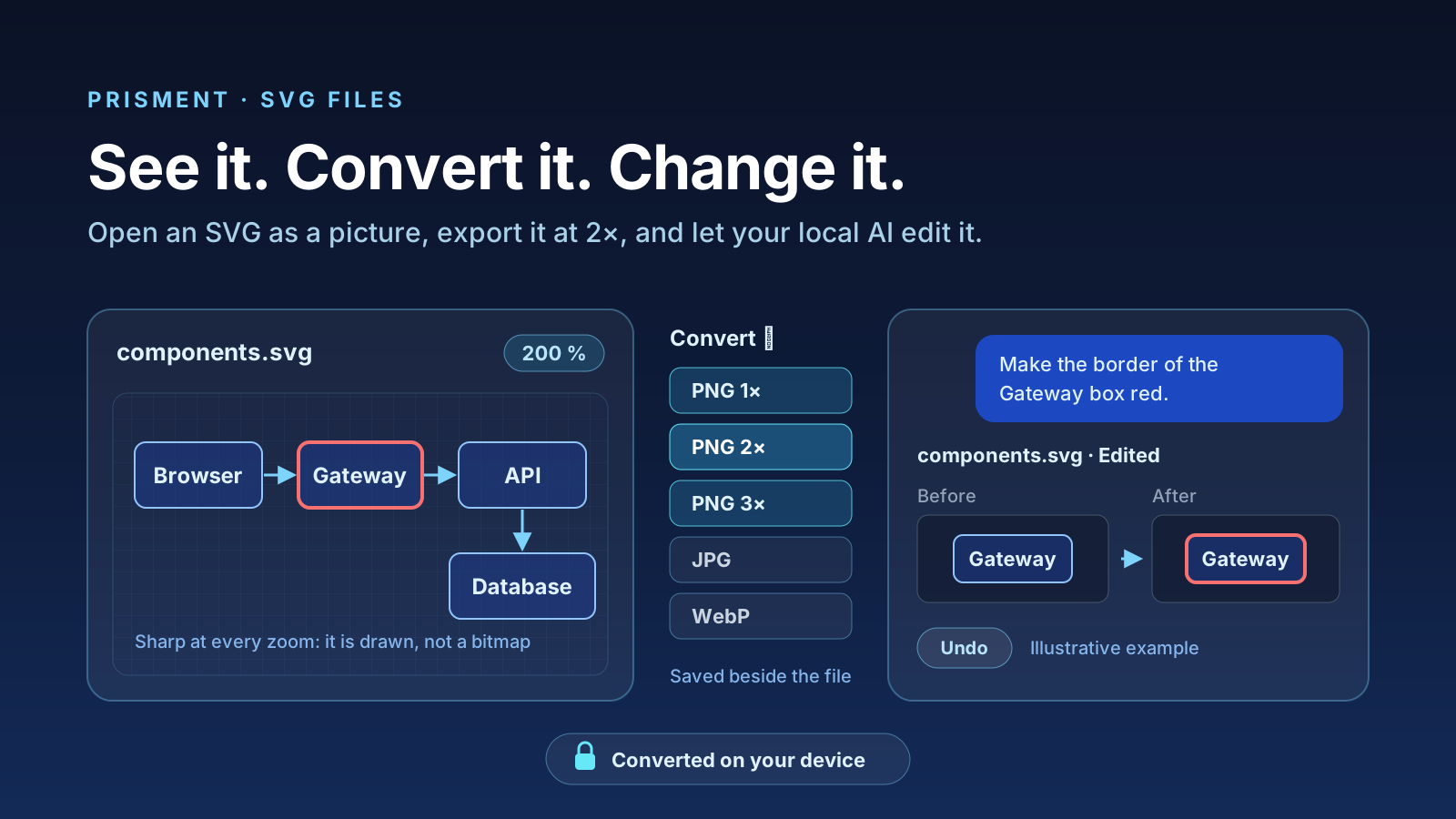
Prisment opens an SVG as the picture it draws, converts it to PNG, JPG or WebP at up to three times its size, copies it as an image or a Markdown link, and — in the desktop app — lets your local AI assistant change it when you ask. Everything happens on your device; the file is never uploaded. The picture at the top of this page is itself an SVG: zoom in, and its edges stay sharp.
These tools arrived in Prisment 1.2.1, in September 2026. This article covers what each one does, how the assistant changes a diagram without breaking it, and what we got wrong on the way. The converter also has a page of its own: SVG to PNG.
1. What Prisment does with an SVG
An SVG opens as a picture, not as code: Prisment draws it and puts the tools to convert, copy and zoom it above it. It is drawn as an image, and a browser never runs the scripts an SVG file can carry when it draws one as an image — so an SVG someone sent you can be opened, looked at and converted without trusting it.
| Tool | What it does |
|---|---|
| Convert | PNG at 1×, 2× or 3×, JPG or WebP, each with the size it will be; Resize or compress… for any size and quality; Download original |
| Copy | Copy image puts a PNG on your clipboard — twice the size, for an SVG; Copy Markdown link writes  relative to the document you last had open |
| Zoom | Fit to the pane, 100 %, and steps; Ctrl or ⌘ with the wheel zooms around the pointer, and a drag pans a picture larger than the pane |
| Background | Plain, checkerboard or dark, to see a transparent edge that would otherwise vanish |
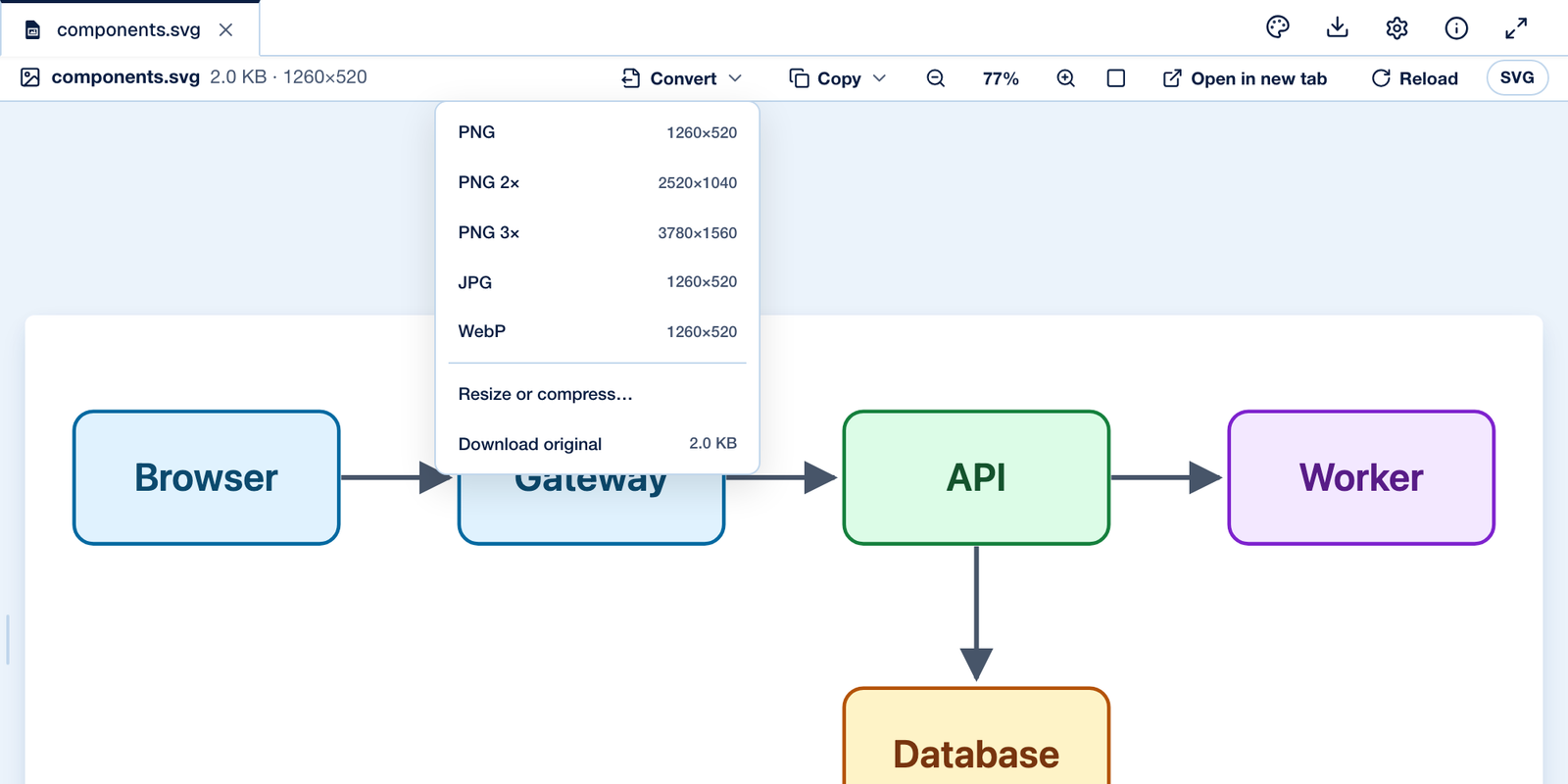
The same viewer works in the browser and in the desktop app. What only the desktop app adds is the assistant:
| Browser at prisment.io | Desktop app | |
|---|---|---|
| View, zoom, change the background | ✅ | ✅ |
| Convert, resize, compress | ✅ | ✅ |
| Copy as an image or a Markdown link | ✅ | ✅ |
| Change the SVG by asking | — | ✅ with the local AI assistant |
2. How to convert an SVG to PNG, JPG or WebP
Press Convert in the toolbar above the picture and pick a format: Prisment draws the copy at that size with your browser's own canvas, and saves it beside the original.
- Open the SVG. Drop the
.svgonto prisment.io/svg-to-png, or open the folder that holds it — in the browser or in the desktop app. - Press Convert. The menu lists PNG at 1×, 2× and 3× with the size each will be, then JPG, WebP, Resize or compress… and Download original.
- Pick a format and size. PNG 2× is the one to reach for on a high-density screen; JPG makes the smallest file, on a white ground, because a JPG has no transparency; WebP keeps it and stays small.
- Find the copy beside the original. In a mounted folder it is saved next to the SVG under its own name —
components@2x.png, orphoto-800x600.webpfrom the resize dialog — and a green note names it. Nothing is overwritten: a second PNG 2× becomescomponents@2x-2.png. Where there is no folder to write into, the copy downloads.
An SVG converts sharply at any size, because it is drawn at the target size rather than stretched from a small bitmap. That is also why Copy image gives you an SVG at twice its size: pasted into a chat or a slide, it stays crisp.
3. How to use an SVG in a Markdown document
Write a Markdown image line pointing at the file — or press Copy Markdown link — and the rendered document draws the SVG from the file itself. The path is relative to the document, so  in overview.md finds the diagram in the diagrams folder beside it.
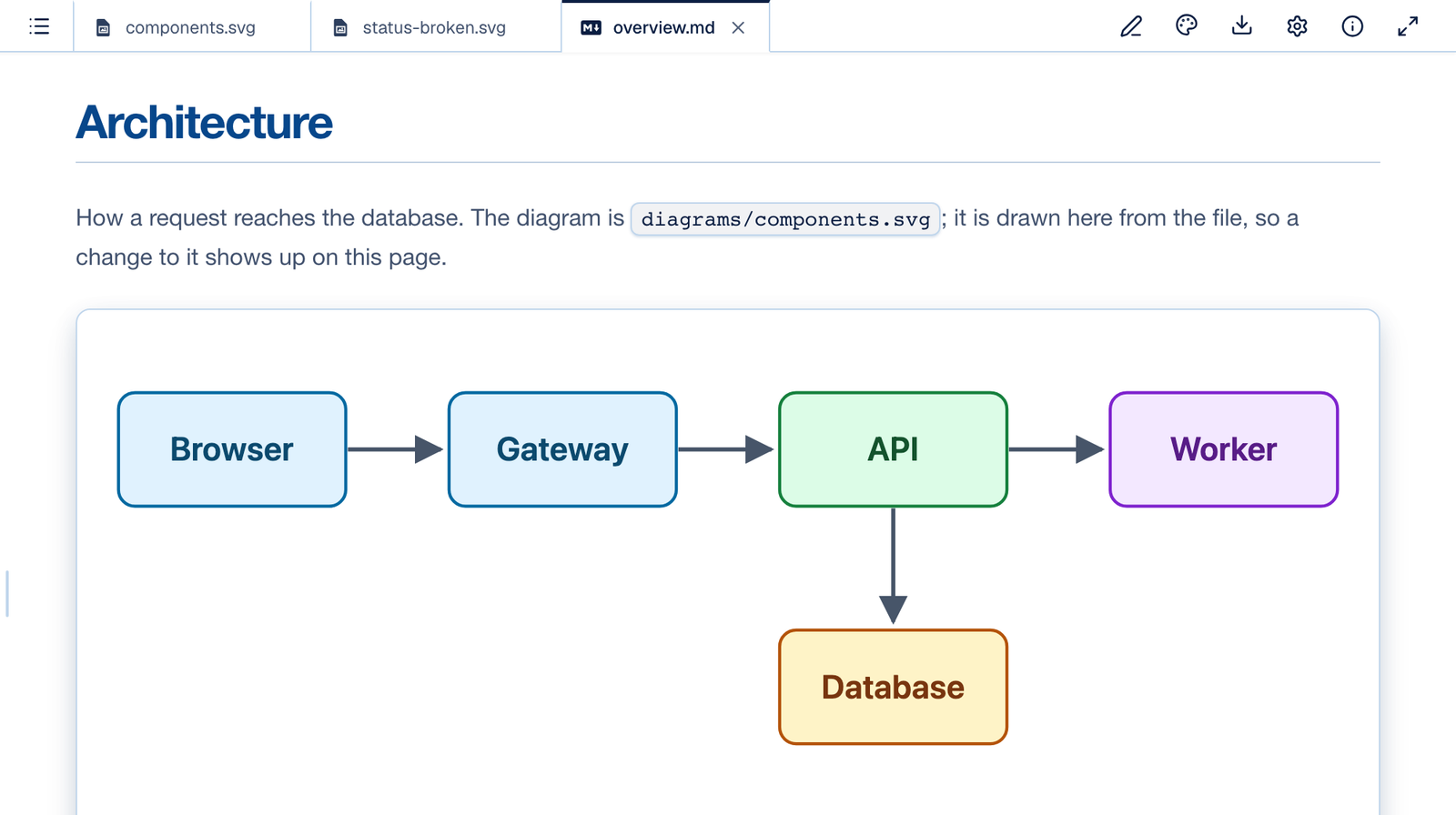
Because the page draws the file, a change to the diagram shows up in every document that links it — there is no copy to keep in step. The document itself is written in the Markdown editor with live preview, where the picture appears as soon as the image line is typed.
4. Why there is no SVG editor
Because a diagram is changed by saying what should be different, not by editing its markup: in the desktop app you ask the local assistant, and see the picture before and after. An SVG's source is XML — coordinates, paths and styles — and a diagram of a few boxes can run to hundreds of lines.
We shipped a source editor first, beside a live preview, on 23 September 2026, and took it out the same day: what a reader wants from an SVG is the picture and what can be done with it, not its markup. So the file is text the app reads, writes and saves with its history, and the only thing that changes it is the assistant, on request.
5. How the local AI changes an SVG without breaking it
You ask in plain words; the app finds the box by its label and checks every change before it is written, so an edit that would break the picture or touch the wrong box is never applied.
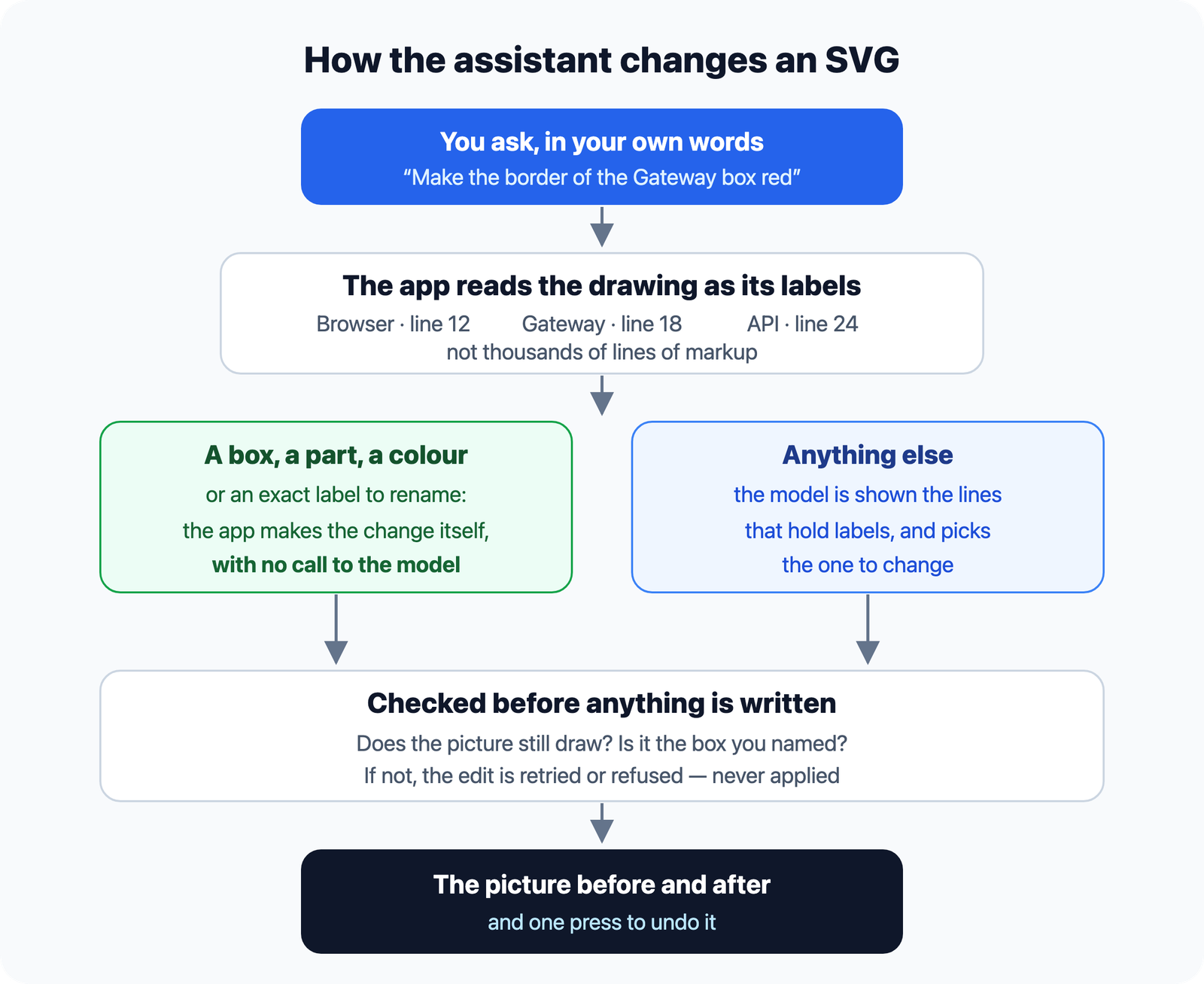
- The model is shown the labels, not the markup. A diagram's source can be larger than a small model's whole context window, so the assistant sees an SVG as its labels —
Gateway · line 18— and edits the line that holds the one you named. - Some changes need no model at all. Make the border of the Gateway box red names a box, a part (border or fill) and a colour, and rename the Gateway box to Load balancer names an exact label: the app makes either change itself, straight away, and says what it did. So does export components.svg as PNG at 2x.
- Every change is checked before it lands. An edit that would stop the picture drawing is retried with the reason and never applied; so is an edit that changes a labelled box you did not name.
- You see pictures, not a diff. The change card shows the region that changed, before and after, with Undo — a line of XML says nothing about what the picture looks like now.
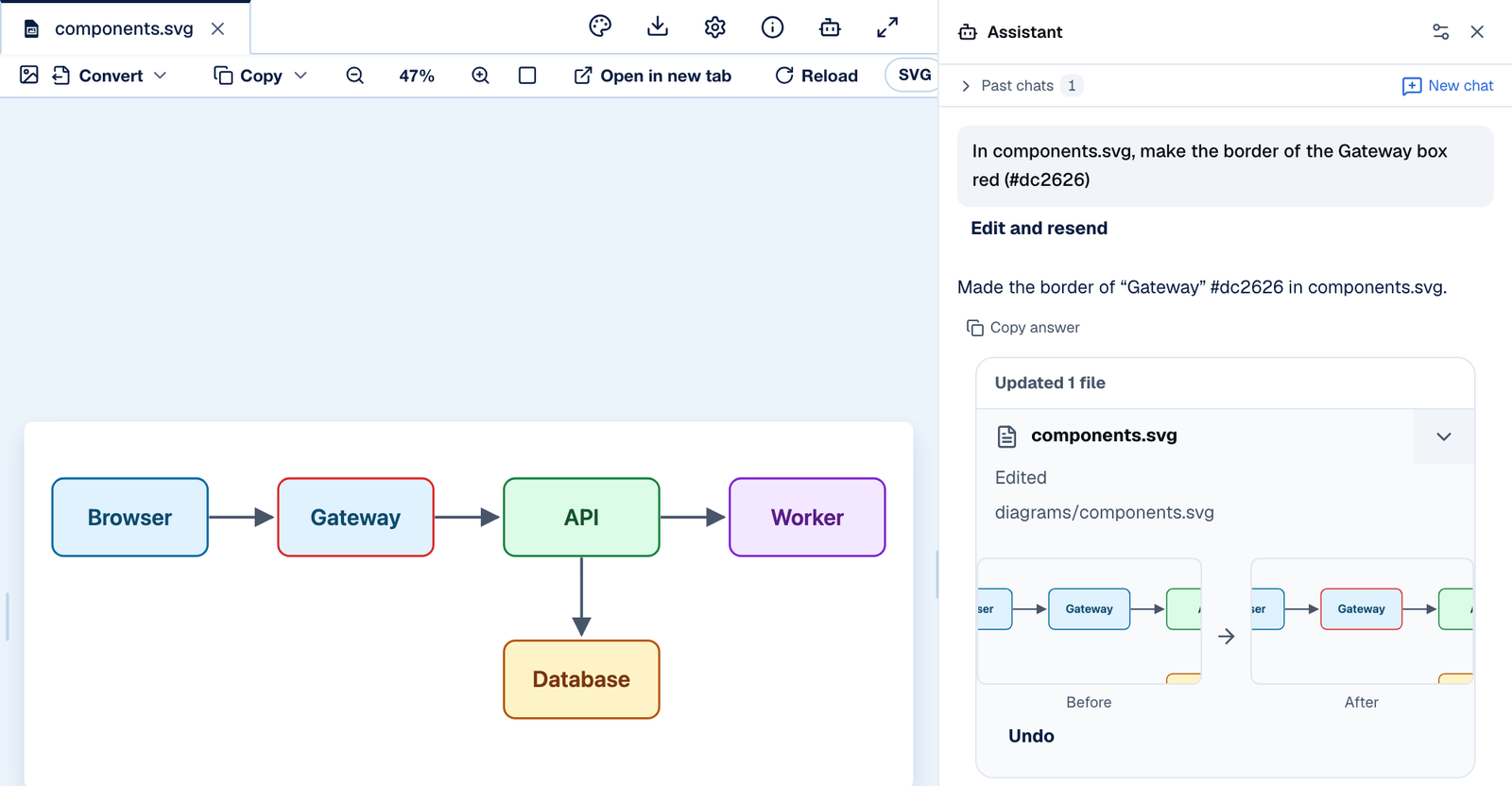
What to expect from each model. This is what we saw asking both kinds of change of a diagram laid out one element per line, and of the same diagram squeezed onto a single line. It is a description, not a score: on our own files we are the judge, so we do not grade ourselves.
| When you ask… | Llama 3.2 3B — small | Qwen2.5-Coder 14B — larger, recommended |
|---|---|---|
| To rename a box, or to set a named box's border or fill to a colour | The app does it — no model needed | The app does it — no model needed |
| For another change, in a neatly laid-out file | Usually lands it | Lands it |
| For another change, in a file squeezed onto one line | Often declines rather than guess — a wrong change is refused, never written | Lands it |
6. When an SVG does not draw
Prisment tells you why, and on which line, instead of showing a blank space. A file that is not well-formed XML cannot be drawn by any browser; Prisment finds the fault and says it in words:
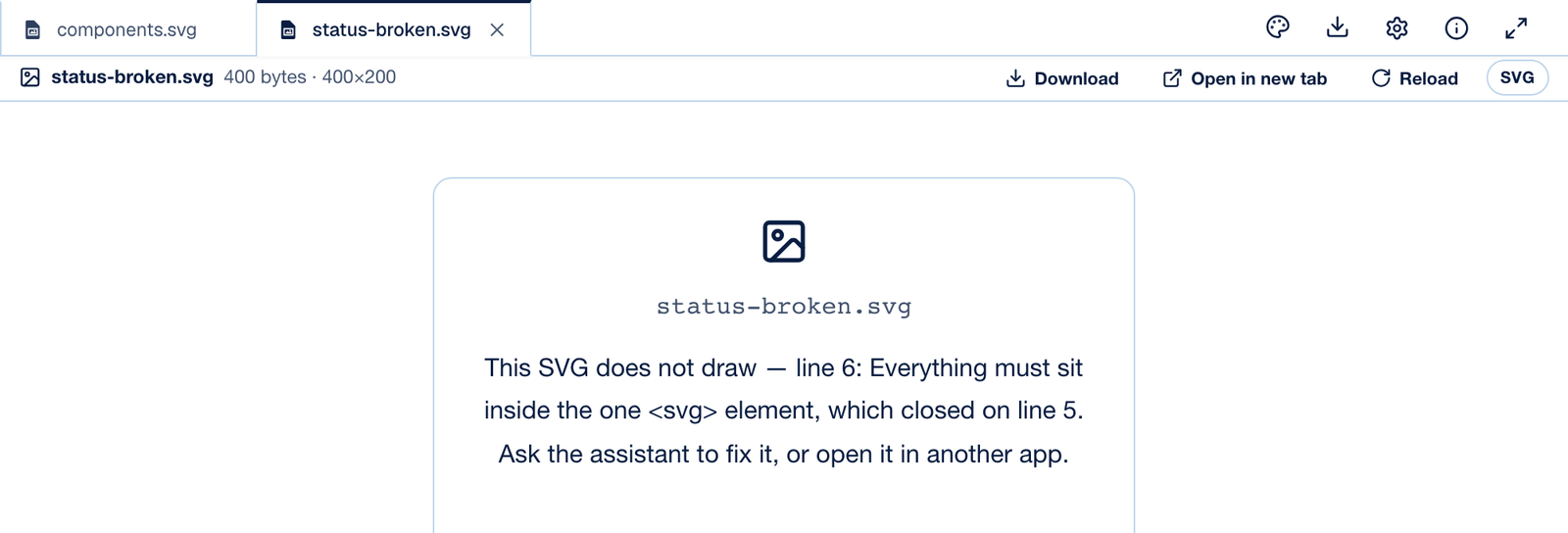
The common faults each have a sentence of their own — a bare &, a < that starts no tag, a comment or a tag never closed, something after the closing </svg> — in English or French, following your language. In the desktop app you can ask the assistant to fix it, as the message suggests.
7. What we got wrong first
Three things, each found by using the feature rather than by reading the code, and each fixed where it started.
- An SVG did not show at all in the desktop app (23 September 2026). The desktop read the file's bytes without saying what kind of file they were. A browser guesses a PNG or a JPEG from its bytes, but never guesses an SVG — treating a document as an image by guesswork would be a security hole — so the picture failed and a fallback card appeared. Every file now carries its type from the moment it is read, so no viewer has to know.
- "Rename the Gateway box" renamed the file. A small model read rename as the command for renaming files. The assistant now offers the lines that hold labels and asks for one — a small model picks a line far more reliably than it writes a whole edit.
- "Make its border red" once produced a picture that would not draw. A small model put a new shape after the closing
</svg>, and another time wrote an attribute onto the closing tag. The checks in §5 that refuse such an edit were written from those replies, and so were the sentences in §6.
8. What stays private
The SVG, and every copy made from it, stays on your device: converting is your browser's own canvas drawing the file. No converter server exists to send it to. In the desktop app the assistant's model runs on your computer too, and the app refuses any connection to it that would leave the machine.
These promises concern your files. The website itself uses analytics; the privacy policy says what is measured on the site and in the desktop app.
9. Try it
Drop an SVG on the SVG to PNG page, or download the desktop app to change one by asking. Both are free, with no account.
The user guide covers the image tools alongside every other format Prisment opens, and the local AI assistant article covers the assistant, the models we recommend and what to check in its answers.
Frequently asked questions
- How do I convert an SVG to PNG without uploading it?
- Open the SVG in Prisment — in the browser at prisment.io or in the free desktop app — press Convert in the picture’s toolbar and choose PNG, PNG 2× or PNG 3×, or JPG or WebP. Your browser’s own canvas draws the file at that size, so it never leaves your device. In a mounted folder the PNG is saved beside the SVG under a new name; otherwise it downloads.
- Can I edit an SVG in Prisment?
- Not by hand: Prisment opens an SVG as a picture, with tools to convert, copy and zoom it, and has no XML editor. To change one, ask the local AI assistant in the Prisment desktop app — for example “make the border of the Gateway box red” — and it shows the picture before and after, with Undo.
- Can a local AI model edit an SVG without breaking it?
- In Prisment, the assistant is shown an SVG as its labels with their line numbers, and every change is checked before it is written: an edit that would stop the picture drawing, or that touches a box you did not name, is retried or refused, never applied. A request that names one box, a part (border or fill) and a colour, or an exact label to rename, is carried out by the app itself without asking the model.
- Is it safe to open an SVG someone sent me in Prisment?
- Prisment draws an SVG as an image, and a browser never runs the scripts an SVG file can contain when it draws it as an image. The file stays on your device: opening, zooming and converting it involve no upload.
- Why does my SVG not show in Prisment?
- Because the file is not well-formed, and Prisment says where — for example “line 6: Everything must sit inside the one <svg> element, which closed on line 5.” Fix that line, ask the local assistant in the desktop app to fix it, or open the file in another app.
- Can I show an SVG inside a Markdown document?
- Yes. A Markdown image line such as  draws the SVG in the rendered document, relative to the document’s own folder, and Copy Markdown link in the picture’s toolbar writes that line for you.