Animated Mermaid Diagrams: Make Them Move, Then Share Them as a GIF
Animate any Mermaid diagram in Prisment — packets along every arrow, colour that follows the flow — then share it as a looping GIF, made on your device.

Prisment 2.0.0 makes Mermaid diagrams move. Small packets travel along every arrow, so anyone can see at a glance which way things flow. Restyle a diagram in one click, and when it looks right, share it as a looping GIF — made on your device, with nothing uploaded.
The animation at the top of this page is one of those GIFs, made by Prisment from an ordinary Mermaid flowchart.
1. A new look in one click
One Customize button beside the zoom controls restyles any diagram — themes for light and dark pages, colour that follows the flow, a hand-drawn sketch style, rounded boxes and tidy right-angled lines — and sets it moving.
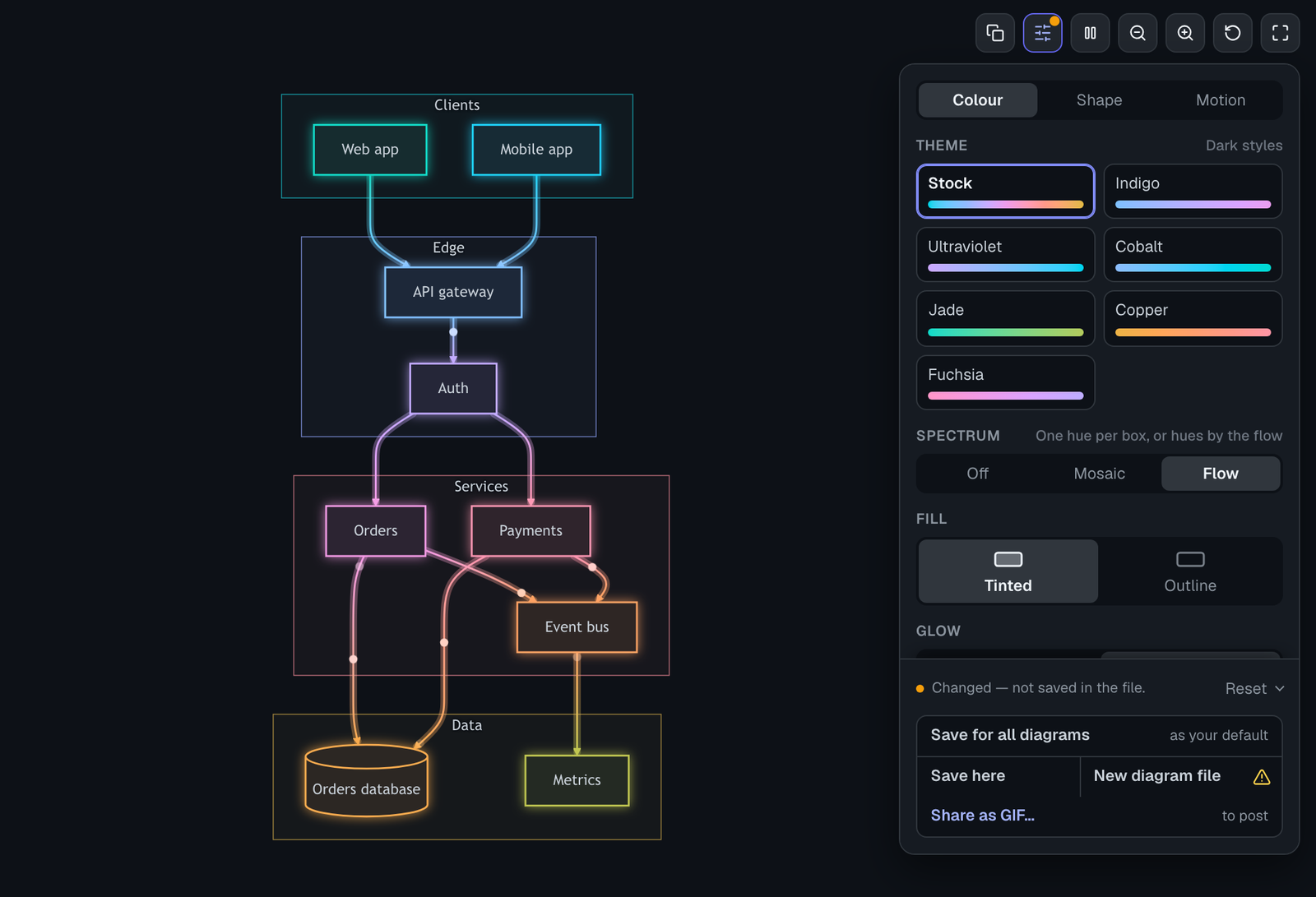
Your Mermaid text never changes: the look is drawn on top of it, and the panel only offers what suits the diagram in front of you. The user guide lists every option.

2. Diagrams that show which way things go
Turn on motion and every arrow carries traffic, from where it starts to where it points — a flowchart reads as a flow, and a sequence diagram as messages on their way. Pick the kind of movement that fits your diagram:
- Packets — dots travelling each line
- Streaks — dots with a fading tail
- Current — a steady stream of dashes
- Signal — a bright pulse, one message at a time

You set the speed and how busy the lines are, a pause button sits beside the diagram, and if your system asks for less motion, diagrams stay still.
3. Colour that means something
Prisment is named after a prism, and Spectrum brings the idea to your diagrams: each box takes its colour from where it stands in the flow, so the colour itself tells you how far along you are.
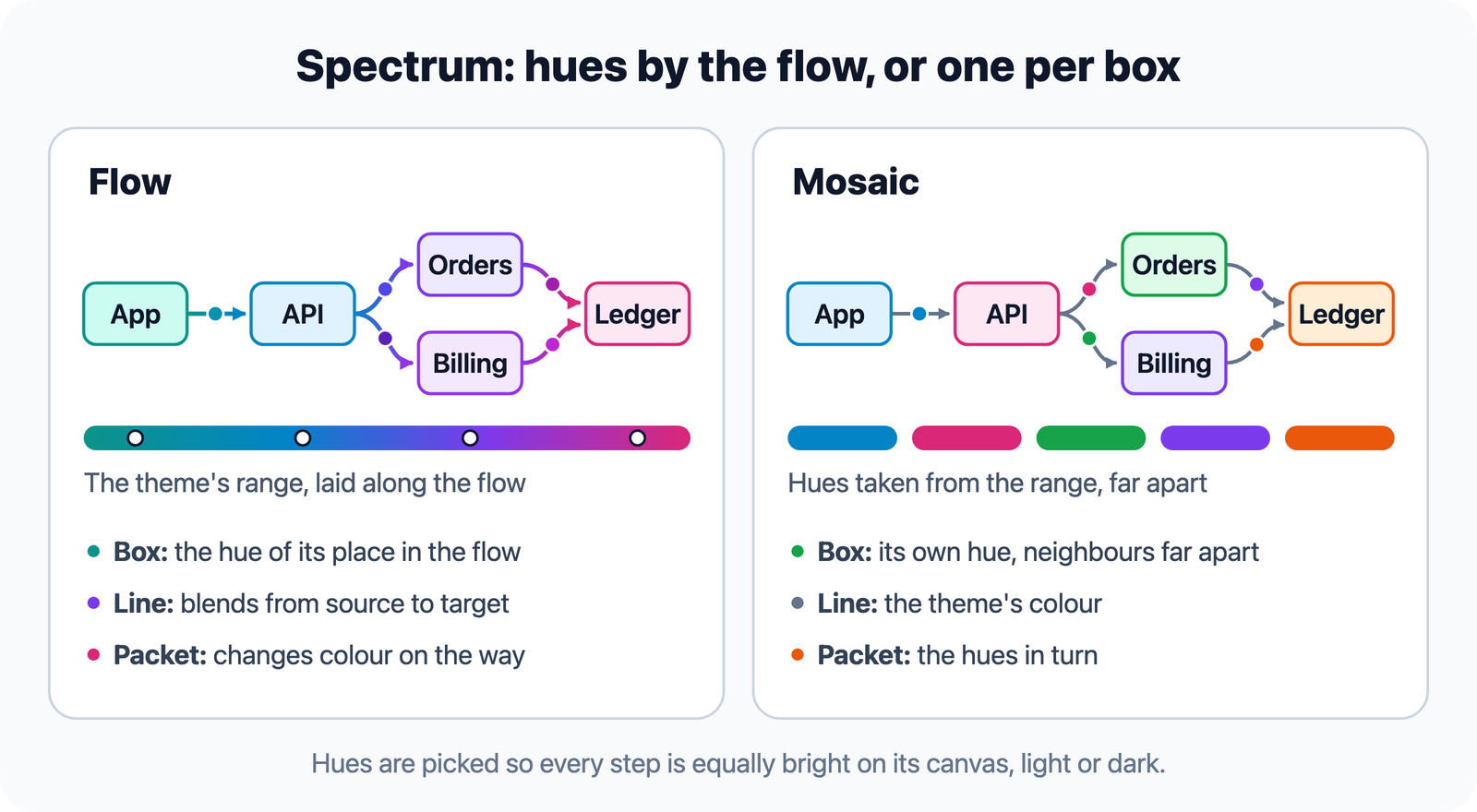
Prefer every box to stand out on its own? Mosaic gives each one a colour of its own instead.
4. Share it as a GIF
Press Share as GIF, pick a frame, and save: you get a looping GIF of the diagram as you styled it, ready for LinkedIn, a README or a chat — made in your browser, with no watermark.
- Give your diagram a motion in its Customize panel.
- Press Share as GIF.
- Pick a frame — the diagram's own shape, square, portrait or 16:9 landscape.
- Press Save GIF.
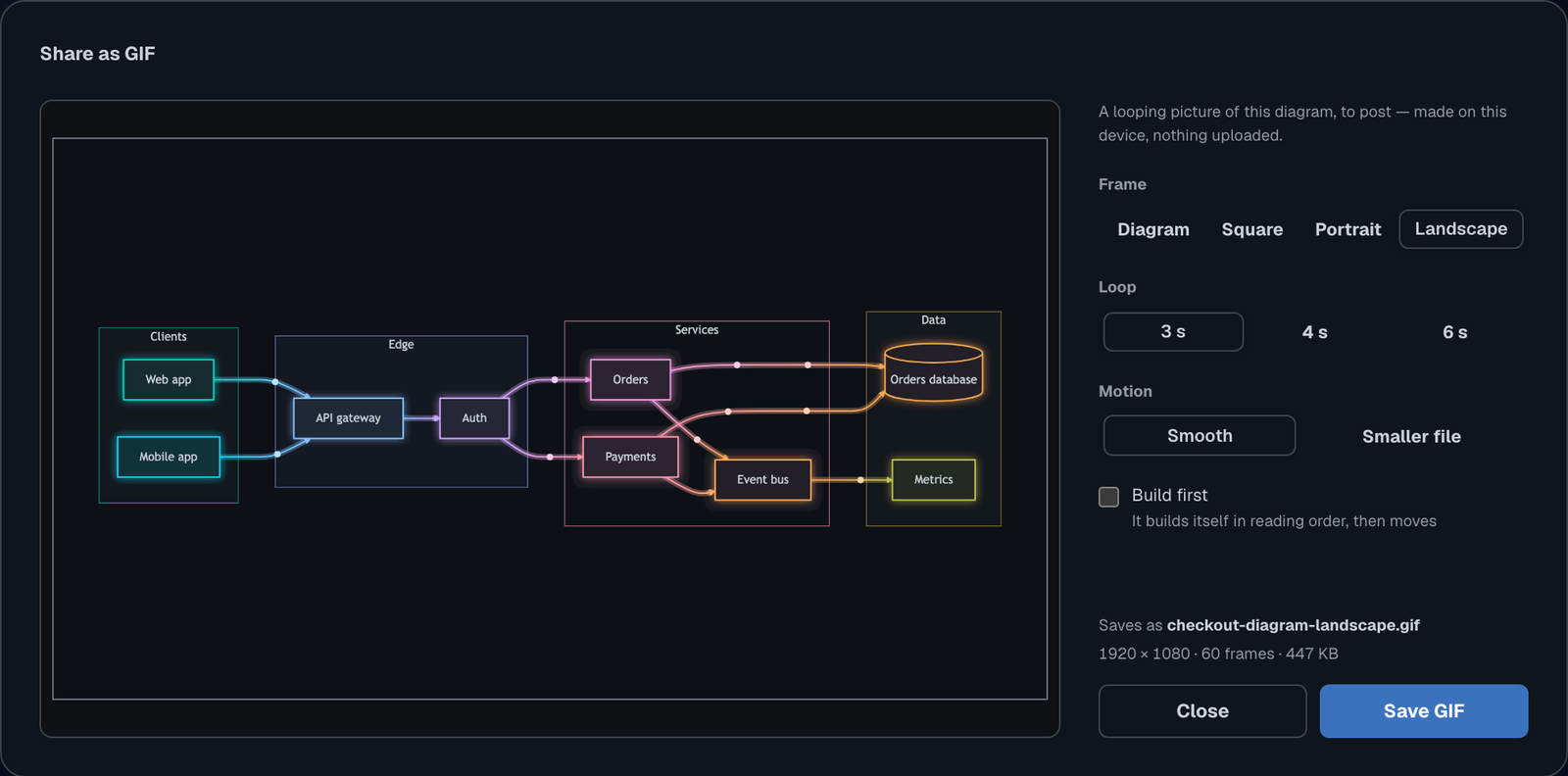
The loop joins up with no visible jump, and the file stays small enough to post. A diagram that doesn't move can be saved as a PNG or SVG picture instead.
5. Walk your team through it
For presenting, Reveal builds a diagram in reading order, Trace lights up the path through the box you point at, and the presentation button plays a sequence diagram one message per click, on the page or in fullscreen. A busy diagram becomes a story you can tell one step at a time.
6. The look travels with the file
Save a diagram as a .mmd file and it keeps its look: your choices sit in a few readable lines at the top of the file, which Mermaid itself simply ignores.
---
prisment:
  look: neo
  spectrum: on
  motion: packets
---
flowchart TD
  push[Commit pushed] --> build[Build]
The file still opens in any Mermaid tool. And when you find a look you love, Save for all diagrams makes it your default everywhere.
7. Works wherever your diagrams are
Diagrams move in the Prisment workspace, in the browser or the desktop app, in the HTML pages you export, and right here. The one below is live — press Customize on it, or pause it.
Charts without arrows, such as pie and Gantt charts, get the themes but not the motion.
8. Try it
Open any Mermaid diagram in Prisment and press Customize — start from an animated diagram, already moving, bring your own to the Mermaid editor, or use the desktop app. All free, with no account.
Every option — each motion, theme and style, and every frame a GIF can take — is described in the user guide. Your diagrams stay on your device; the website itself uses analytics, as the privacy policy explains.
Frequently asked questions
- How do I animate a Mermaid diagram?
- Open the diagram in Prisment — a Mermaid block in a Markdown document, or a .mmd file — press Customize beside its zoom buttons and choose a motion: Packets, Streaks, Current or Signal. Small marks then travel every arrow from where it starts to where it points. Prisment is free and runs in your browser or as a desktop app.
- Can I turn a Mermaid diagram into a GIF?
- Yes. Give the diagram a motion in Prisment, then press Share as GIF in its Customize panel, pick a frame — its own shape, square, portrait or 16:9 landscape — and save. The GIF loops without a visible jump, is made on your device, and carries no watermark.
- Does animating a diagram change my Mermaid code?
- No. The motion and the look are drawn on top of your diagram, and your Mermaid text stays exactly as you wrote it. Only when you ask a .mmd file to keep its look does Prisment add a few lines to its front matter, which Mermaid itself ignores.
- Which Mermaid diagrams can be animated?
- Every diagram with arrows: flowcharts and sequence, class, state, entity–relationship, requirement, mind map, block and architecture diagrams. Charts without arrows, such as pie, Gantt and timeline charts, take the themes but not the motion.
- Can I pause the animation?
- Yes. A pause button appears beside Customize whenever a diagram moves, and diagrams scrolled out of sight pause by themselves. If your system asks for reduced motion, diagrams stay still until you turn motion on.