Sort, Filter and Edit Markdown Tables
Explore Markdown tables in Prisment: sort and filter rows, expand the view, copy CSV, and edit rows, columns and alignment without counting pipes.
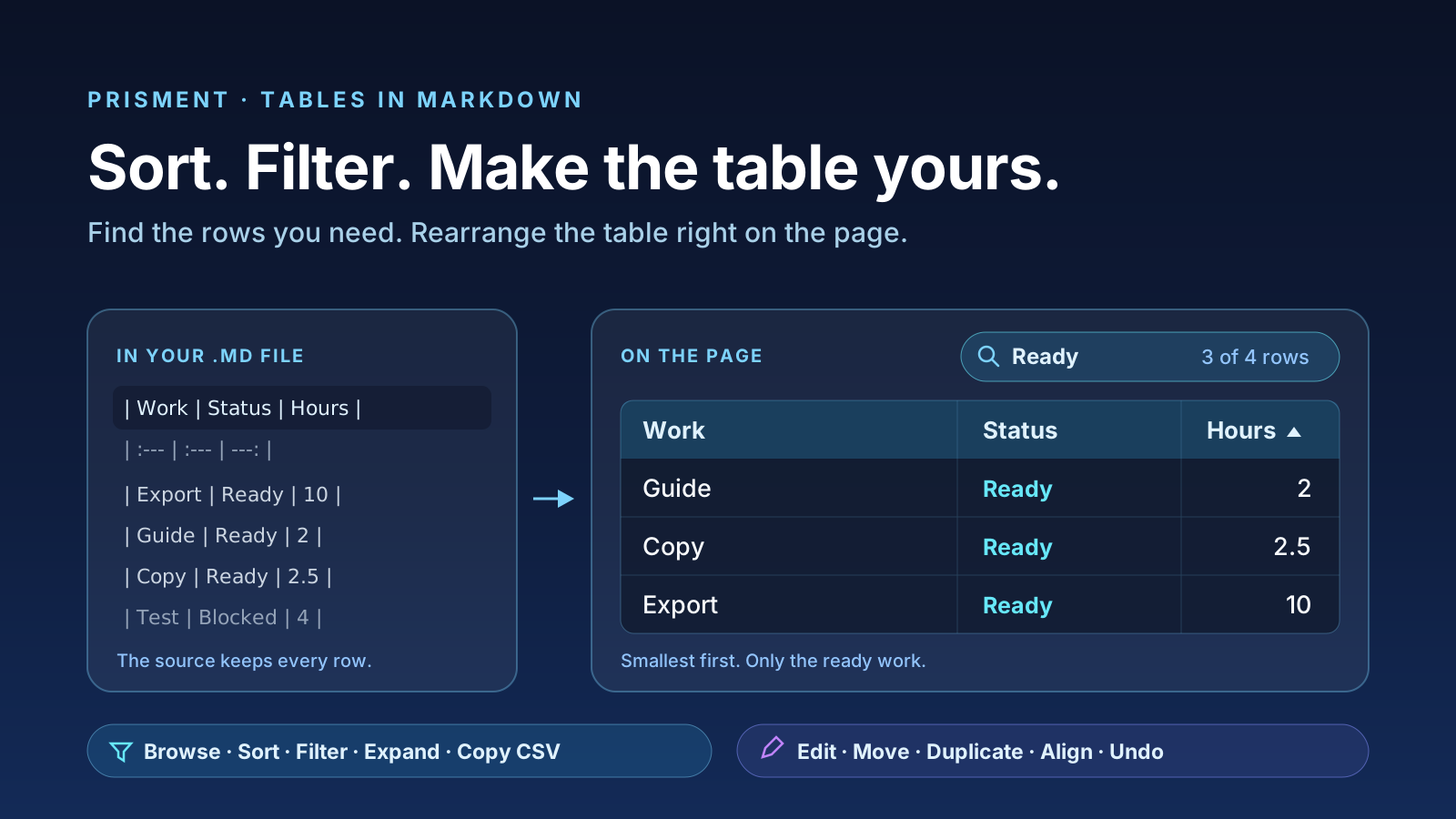
Prisment lets you sort, filter, expand and copy a rendered Markdown table, then edit its rows, columns and alignment directly on the page. Browsing leaves the saved table alone; structural edits update the Markdown and belong to its undo history.
This article previews the table controls in the upcoming release, photographed in the current development build. The complete instructions live in the guide’s Tables chapter.
How do you find the table controls?
Point at a table and its options appear at the right edge; right-click a cell to open the table menu. The floating controls work in Edit, Read and Review. On a touch screen, tap a cell to reveal them.
The controls stay near the table you are reading, even halfway down a long document. Filter opens a small panel when you need it; Expand table gives a wide table its own screen; Copy visible rows as CSV takes the result to your clipboard. Edit adds quick Add row and Add column buttons, plus a three-dot menu for the other operations.
The menu also works when the floating toolbar is hidden. That gives you a way to work with a table without leaving a row of buttons above it. For keyboard access, focus a table in Read or Review and press Enter to reach its controls; Shift+F10 opens its menu.
How do you find the rows that matter?
Filter matches text in any cell, and sorting lets you read a column in ascending, descending or source order. Neither action changes the Markdown file.
Imagine a release checklist with work, owner, status and estimated hours. You want the ready items, smallest first. Open Filter and type Ready: the header stays visible while other rows leave the view. The count tells you how much of the table you are seeing, and says when nothing matches.
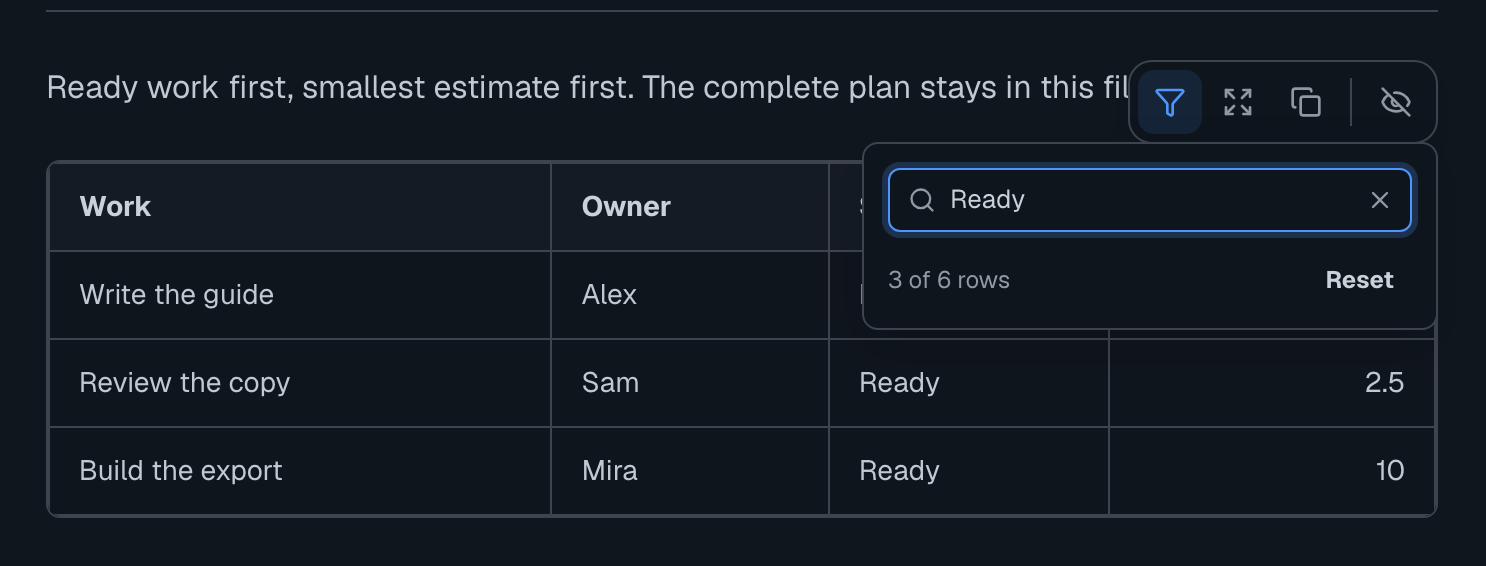
In Read and Review, click the Hours header. The first click sorts ascending, the next descending, and the third returns to source order; a small filled caret points up or down to show the direction. Plain numbers sort numerically, so 2, 2.5 and 10 appear in that order. Empty cells stay at the end. In Edit, a header click still puts you in its text: choose Sort column from the menu instead. You can open that menu from any cell in the column.
Reset clears the filter and sort together. Each table has its own view choices, so narrowing the checklist does not narrow another table further down the document.
What changes the view, and what changes the file?
Sorting and filtering help you inspect the table; row, column and alignment operations edit it. The distinction matters when you share a file or return to a draft later.
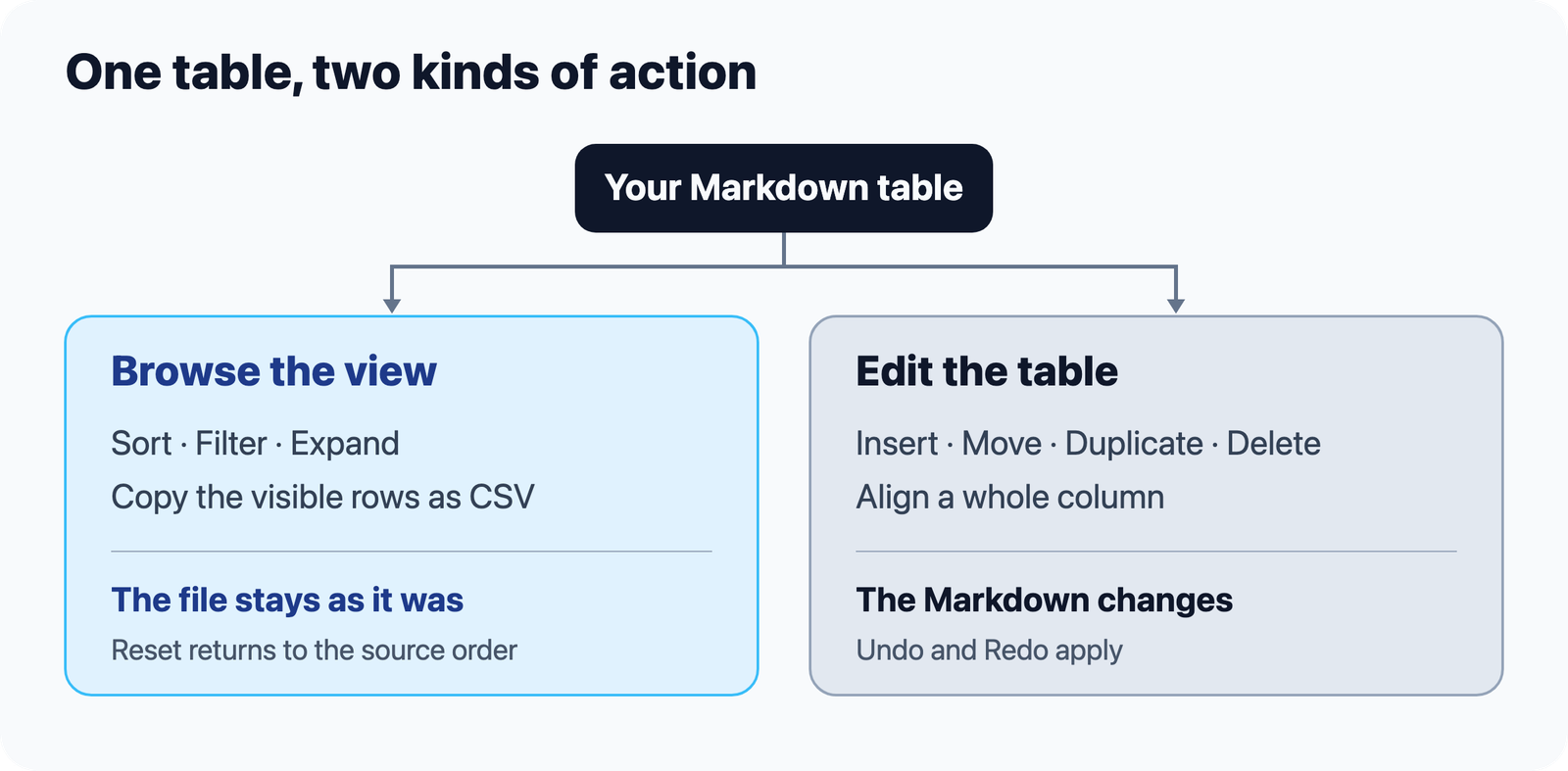
| Action | What happens to the Markdown |
|---|---|
| Sort, filter or browse the expanded viewer | The saved rows and their order stay intact |
| Copy visible rows as CSV | The clipboard gets the displayed result; the file stays intact |
| Insert, move, duplicate, delete or align | The table source changes; Undo and Redo apply |
This means you can inspect only the ready work without deleting the blocked work. An HTML export keeps the source table rather than turning your temporary filter into missing rows. If you want a short extract for another tool, copy the visible rows as CSV.
How do you rearrange a table without counting pipes?
In Edit, use the table menu’s Row, Column and Align column groups to change the table where it stands. Right-click the cell you want to work from, or select it and open the three-dot Edit table menu.
Row lets you insert above or below, move up or down, duplicate, or delete a body row. Column offers the same operations left or right. Align column applies left, centre, right or default alignment to the whole column. Quick Add row appends at the bottom of the source table; Add column appends at the right edge.
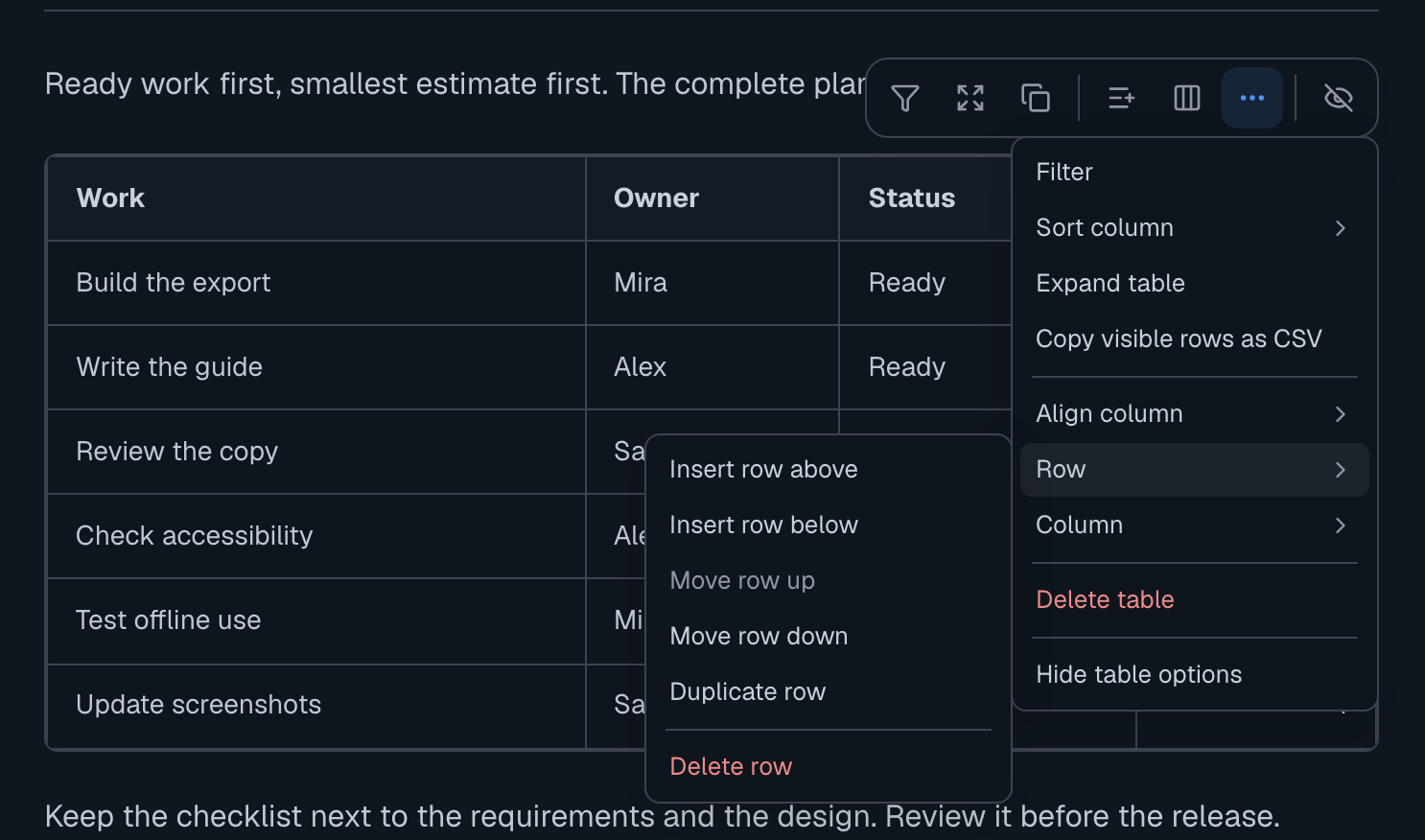
Suppose the next checklist needs a second documentation task with the same owner and status. Duplicate that row, edit its name and estimate, then move it beside the related work. To place estimates next to the task names, move the Hours column left. Right-align that column so the numbers are easier to scan.
These operations use source order. A structural edit clears the current sort and filter before changing the table, so “move up” has a stable meaning. The header remains a header; deleting the last column removes the table. Undo and Redo work as they do for other edits, and saving follows your normal workspace workflow.
How do you read a wide table and take an extract?
Expand table opens an isolated full-screen view with scrolling, sticky headers, filtering, sorting and CSV copy. It starts with the view you were using; changes inside it stay in that viewer.
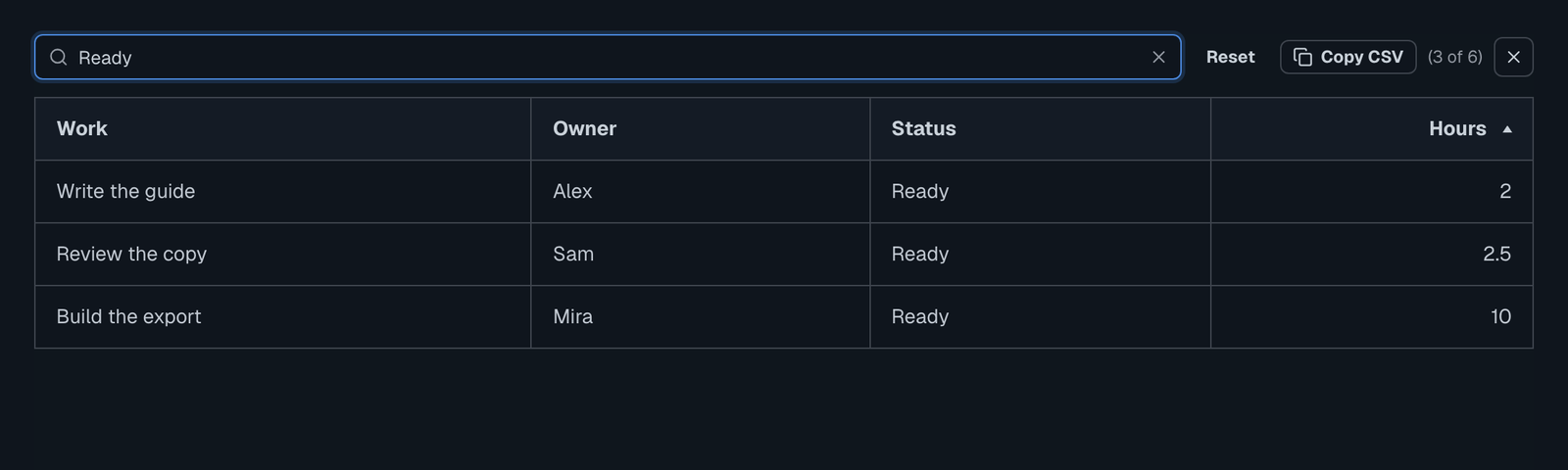
For the ready-work extract, filter to Ready, sort Hours ascending and press Copy CSV. The clipboard contains the header followed by exactly those three rows in the order on screen. Cell formatting becomes readable text; commas, quotes and line breaks are escaped for CSV. If no rows match, copying is disabled.
Close, or press Escape, to return to the document. The full-screen filter has not replaced the document’s view or rewritten its source.
Can you keep the page quiet?
The eye-off button hides the floating table options until you bring them back. A notice explains the choice and offers Undo. Right-click a table and choose Show table options, or use the table-options switch in Settings → Markdown.
Header sorting in Read and Review continues to work while the toolbar is hidden, and right-click still offers the table actions. You can leave the page clear for reading and reach the operations when you need them. Open Prisment and try it on a checklist, a comparison or a plan that already lives in Markdown.
Frequently asked questions
Does sorting or filtering change my Markdown table?
No. Sorting and filtering are workspace view choices in Prisment. Filtering keeps the hidden rows, sorting leaves the saved source order intact, and Reset clears both. Inserting, moving, duplicating or deleting rows and columns, and changing column alignment, are edits that update the Markdown and support Undo and Redo.
How do I sort a Markdown table in Prisment?
In Read and Review, click a column header to cycle through ascending, descending and source order. In any mode, right-click a cell and choose Sort column. In Edit, the same menu is available through the toolbar’s three-dot Edit table button; clicking a header still edits its text.
Can I copy a filtered Markdown table as CSV?
Yes. Copy visible rows as CSV includes the header and only the displayed body rows, in their current sort order. Rich cell content becomes readable text, with commas, quotes and line breaks escaped for CSV. Copying is available in the table toolbar, the right-click menu and the full-screen viewer.
Can I bring back hidden table controls?
Yes. Right-click any table and choose Show table options, use Undo in the hide notice, or turn on Show table options when I point at a table in Settings → Markdown. The right-click menu keeps its table actions available while the floating toolbar is hidden.