Try a Demo Workspace Built for Your Kind of Work
Four finished demo workspaces (app development, a knowledge bundle, a book and a daily tracker) show what Prisment does for your kind of work, free in your browser.
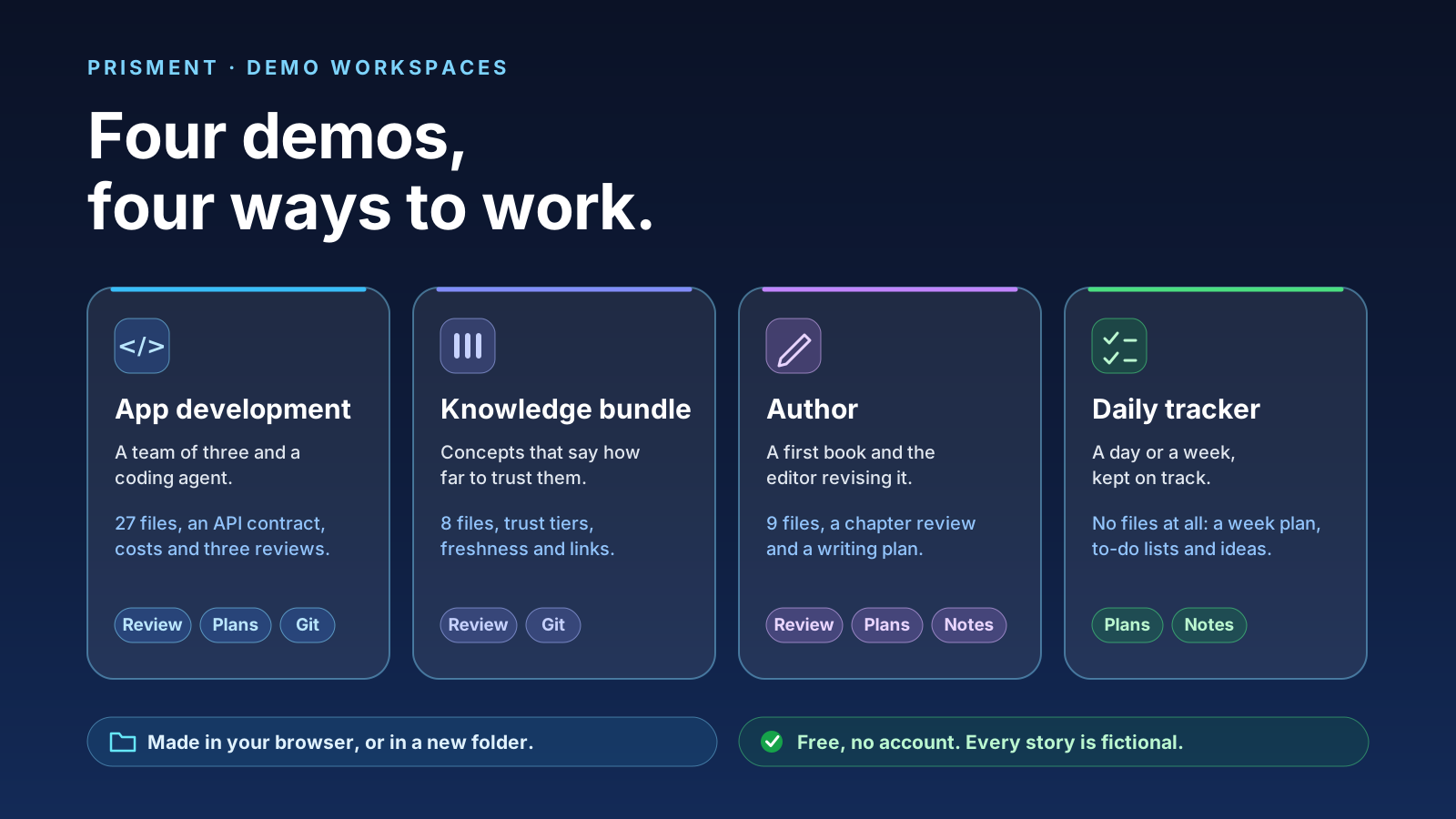
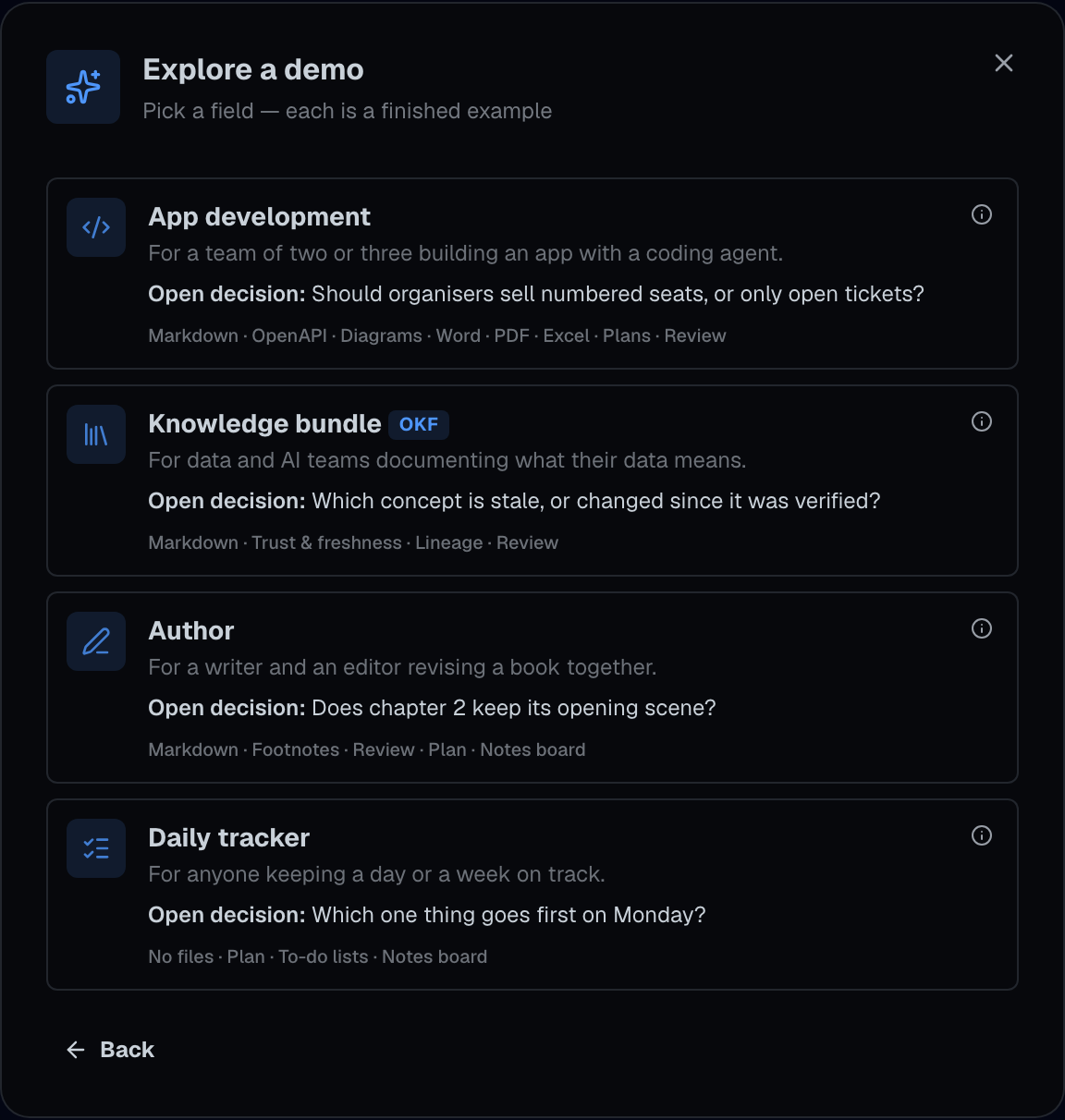
Create New › Demo opens a gallery of four finished, fictional workspaces, each switching on a different part of Prisment, so you can see your kind of work in it before you bring your own files. Each is made in your browser or in a new folder, is free, needs no account, and changes nothing already on your computer (how documents are handled).
1. Why are there four demos instead of one?
Because the same app does different work for a small software team, a data team, a writer and someone with a to-do list, and one tour would show only one of them. Each demo is a short story with one decision left open. Pick the field closest to yours.
| Demo | Who it is for | The open decision |
|---|---|---|
| App development | A team of two or three building an app with a coding agent | Should organisers sell numbered seats, or only open tickets? |
| Knowledge bundle (OKF) | Data and AI teams documenting what their data means | Which concept is stale, or changed since it was verified? |
| Author | A writer and an editor revising a book together | Does chapter 2 keep its opening scene? |
| Daily tracker | Anyone keeping a day or a week on track | Which one thing goes first on Monday? |
2. What does the App development demo show?
A small team's whole project folder: 27 files for an online ticket marketplace called Acme TicketHub, built with a coding agent. It holds what such a project keeps: requirements, one architecture page, an API contract that opens as interactive docs, an animated checkout, the cost of each phase with an Excel workbook behind it, a Word agreement, a PDF of the payment terms, two plans and a notebook. Made in a folder, it opens with three reviews waiting in the Review panel: one approved, one asking for changes, one whose approval lapsed after an edit. That is the loop in reviewing a plan before the AI builds it.
3. What does the Knowledge bundle demo show?
A folder of eight Markdown files, Lumen Studio's data as an Open Knowledge Format bundle, where each concept says how far to trust it. Every concept shows its type, its trust tier, whether it changed since it was verified and whether it is still fresh, with a bar of what it links to and from. Made in a folder, it opens with a review of the whole bundle waiting in the Review panel, its three questions to decide: a table past its stale_after, a metric changed since it was verified, and a guide that still links a deprecated metric. The details are in reading and checking a bundle.
4. What does the Author demo show?
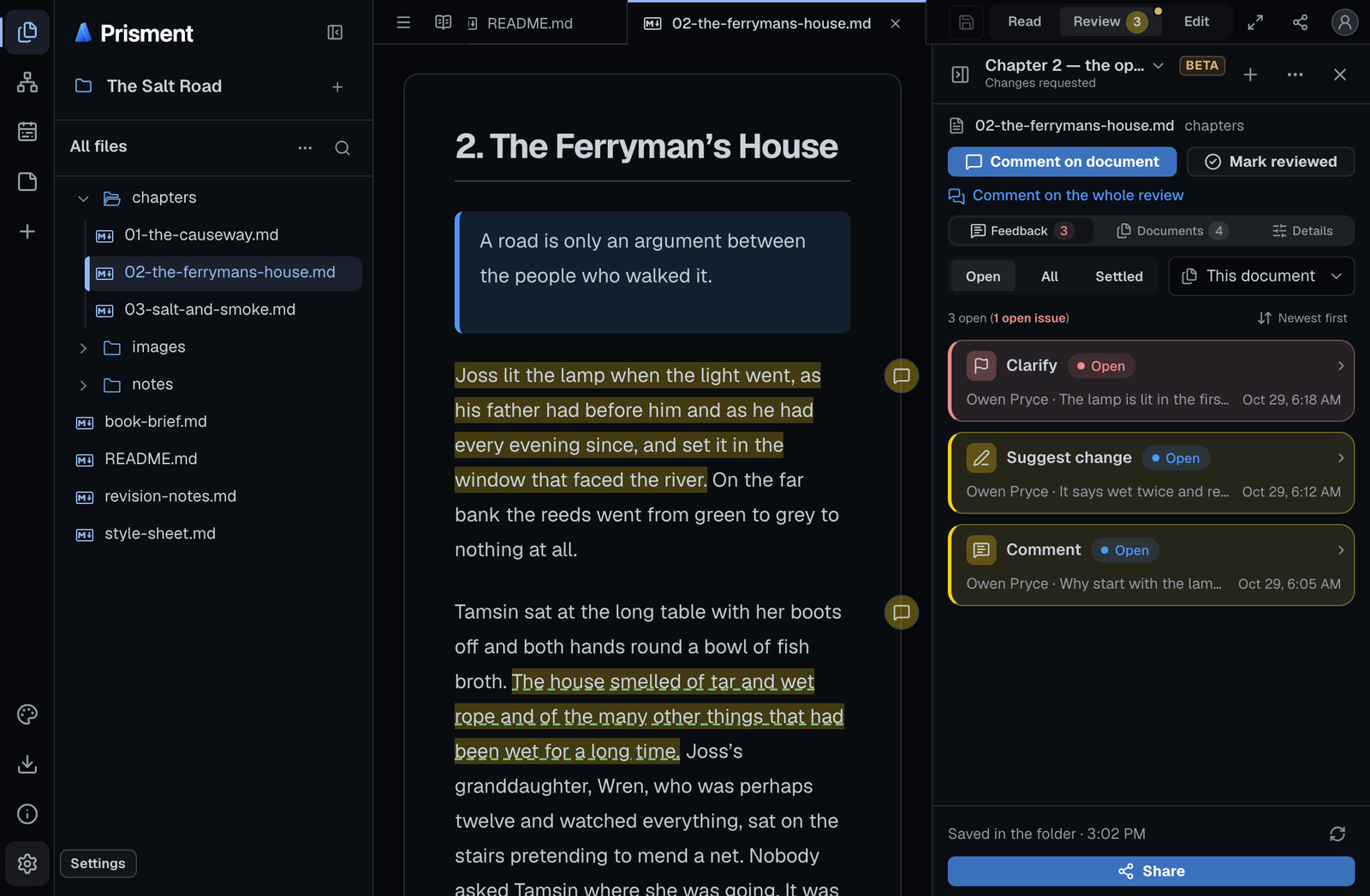
A short book, The Salt Road, and its editor's review of chapter 2, so a writer sees Prisment working on prose rather than code. Nine files: a start page, a brief, a style sheet, three chapters with a pull quote and a footnote each, the editor's revision notes and a page of characters. The writing schedule is a plan, and a notebook holds a board of idea cards. Made in a folder, chapter 2 arrives with three open items in the Review panel: a comment, a suggested replacement and a Clarify flag on a lamp lit twice.
5. What does the Daily tracker show with no files at all?
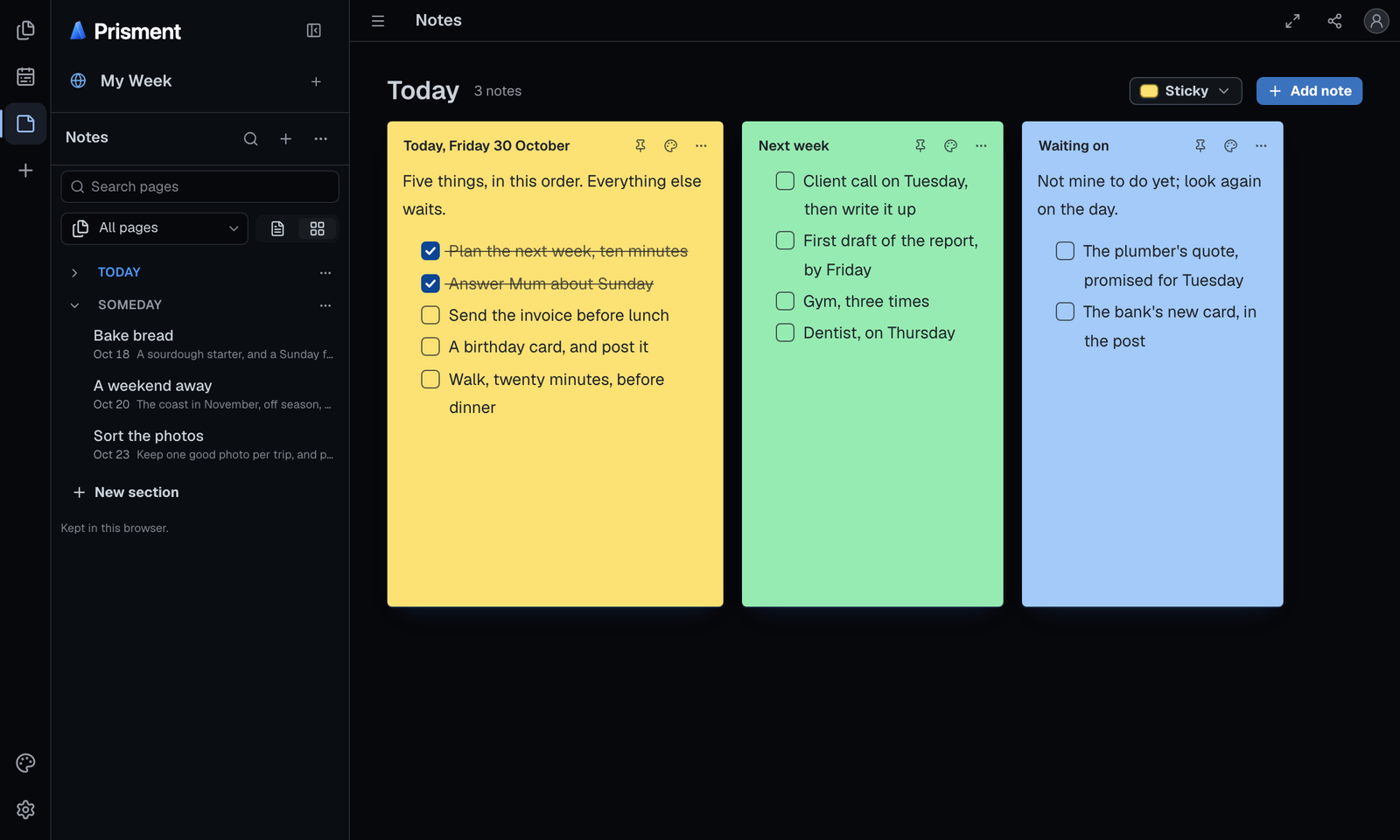
A week plan and to-do lists, with no documents: Prisment used as a planner. The workspace holds one plan, My week, laid out day by day under Work, Home and Health, and a notebook with a Today board of three notes (today's list, next week's, and what you are waiting on) and a Someday board of ideas. It opens on the notebook and says it made no files. The tools are Plans and Notes.
6. What does each demo turn on, and where does it live?
A demo switches on only the tools its field uses, and you choose where it lives: in this browser, or in a new folder on your computer. The Author and the Daily tracker leave Source Control off, because a book or a to-do list has no use for Git; the Knowledge bundle has no Plans or Notes.
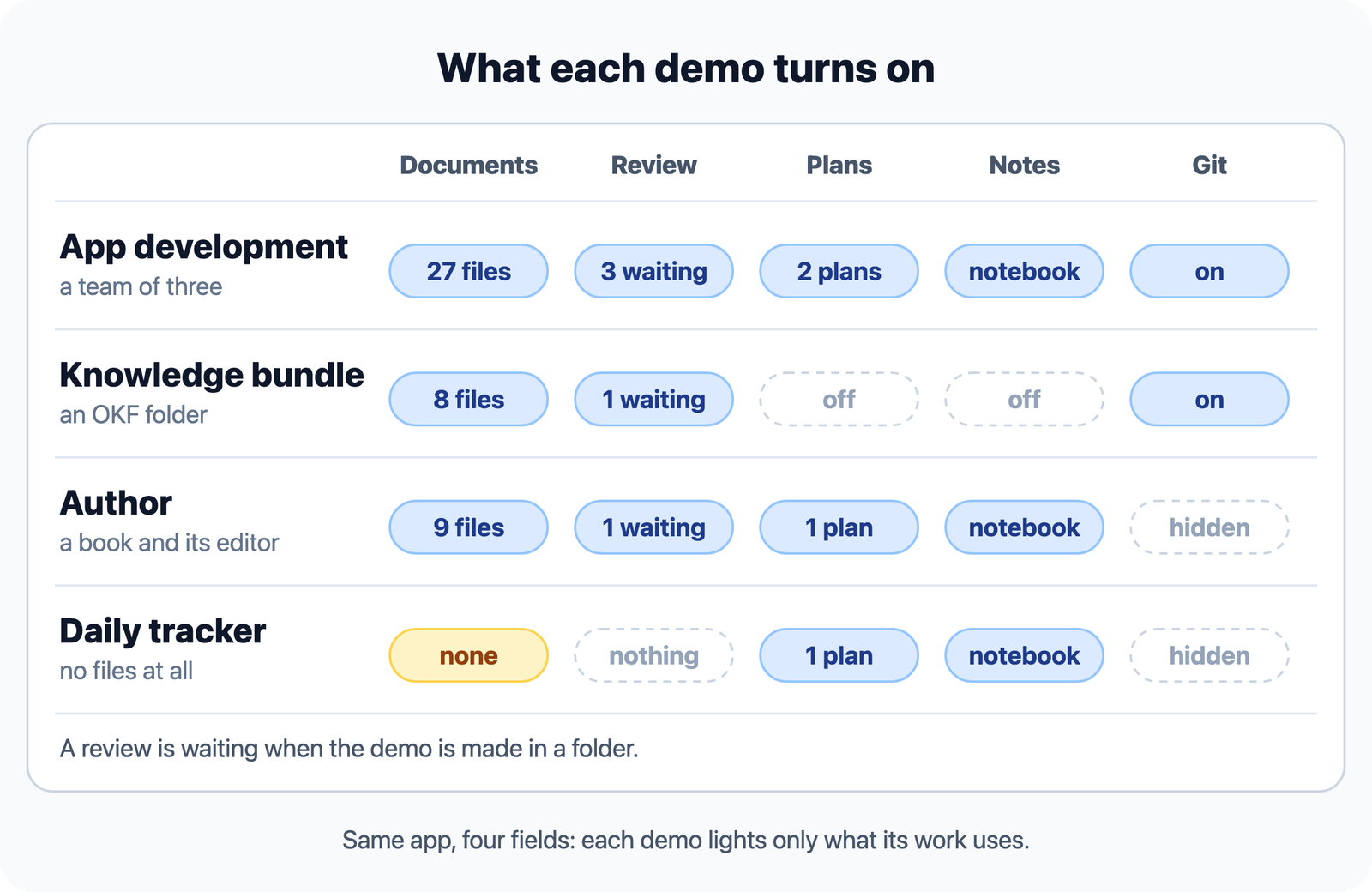
Review works on a folder, so In a folder on your computer is marked Recommended whenever a demo's story uses it. A demo made in a folder is always a new folder named after it, in your default location or inside a folder you choose.
7. How do you try one, and then make it yours?
Open Create New, choose Demo, pick a field, and press Create: it takes about a minute.
- Open the gallery. Press Create workspace, or the + beside the workspace name, then Demo. In the desktop app, choose Try a demo….
- Pick a field. The ⓘ on a card says what is inside.
- Name it and choose where it lives. Choose a folder if you want to try Review.
- Press Create. It opens on its start page in Read mode, or on its notebook when it has no files.
- Change it, or remove it. Edit anything, or use the ⋯ beside the workspace name: Delete Workspace, or for a folder Close Workspace, which leaves its files.
The rest is in the guide under start from a template. Every story is fictional and never advice. Free, no account: open the workspace and choose Demo.
Frequently asked questions
What is a Prisment demo workspace?
A demo workspace is a finished, fictional example of one field, made for you in your browser or in a new folder. Create New › Demo offers four: App development, Knowledge bundle (OKF), Author and Daily tracker. Each has one decision left open, so you can see the tools being used on something real.
Do the demos need an account, an install or my own files?
No. They are free, need no account and need none of your files. A demo made in this browser works in any browser. A demo made in a folder needs a browser that can open folders (Chrome or Edge) or the desktop app. The hosted website separately uses aggregate analytics, which the privacy policy describes.
Why does a demo show its review only when it is made in a folder?
Review works on a folder: a review is saved inside the folder you opened, so the documents can be carried by Git or a shared drive. A demo made in this browser has no folder to save it in, so the folder answer is marked Recommended whenever a demo uses Review.
How is this different from the Demo Workspace my first visit opens?
The first visit opens a smaller sample, Lumen Studio's booking app, on a rendered document with a plan and a notebook. The gallery under Create New › Demo is one finished example per field, made when you choose it.
Are the people, companies and figures in the demos real?
No. Every demo is a fictional story and never advice: its people, companies, costs and dates are invented, and its dates are counted from the day you make it.
Can I keep a demo, or delete it?
Both. A demo is an ordinary workspace: edit, rename or add to it. A demo made in a folder is plain files in a new folder named after it, and closing it in Prisment leaves those files on your disk.