Solution Design Packs: Document, Diagrams and API Contract in One Folder
Keep the design document, its Mermaid diagrams and the OpenAPI contract as plain files in one folder, read them together, and share them as an offline site.
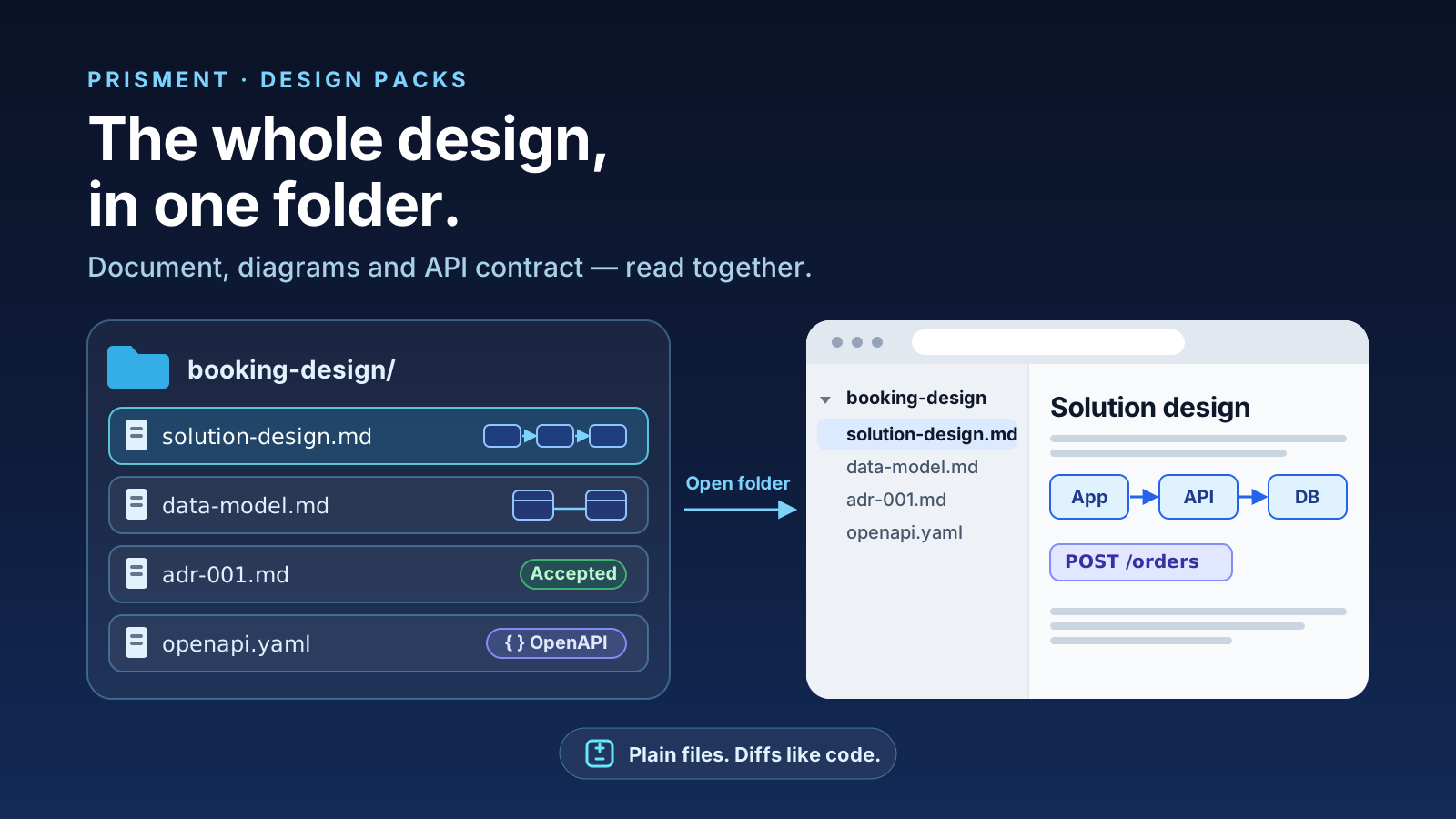
A solution design is never one file, and Prisment lets you keep it that way: the design document, its Mermaid diagrams and the OpenAPI contract stay as plain files in one folder, render in one place, and export as one browsable site. The usual alternative is a wiki for the prose, a drawing tool for the boxes, a spec editor for the contract — and a PDF assembled the night before the review.
1. What is a design pack made of?
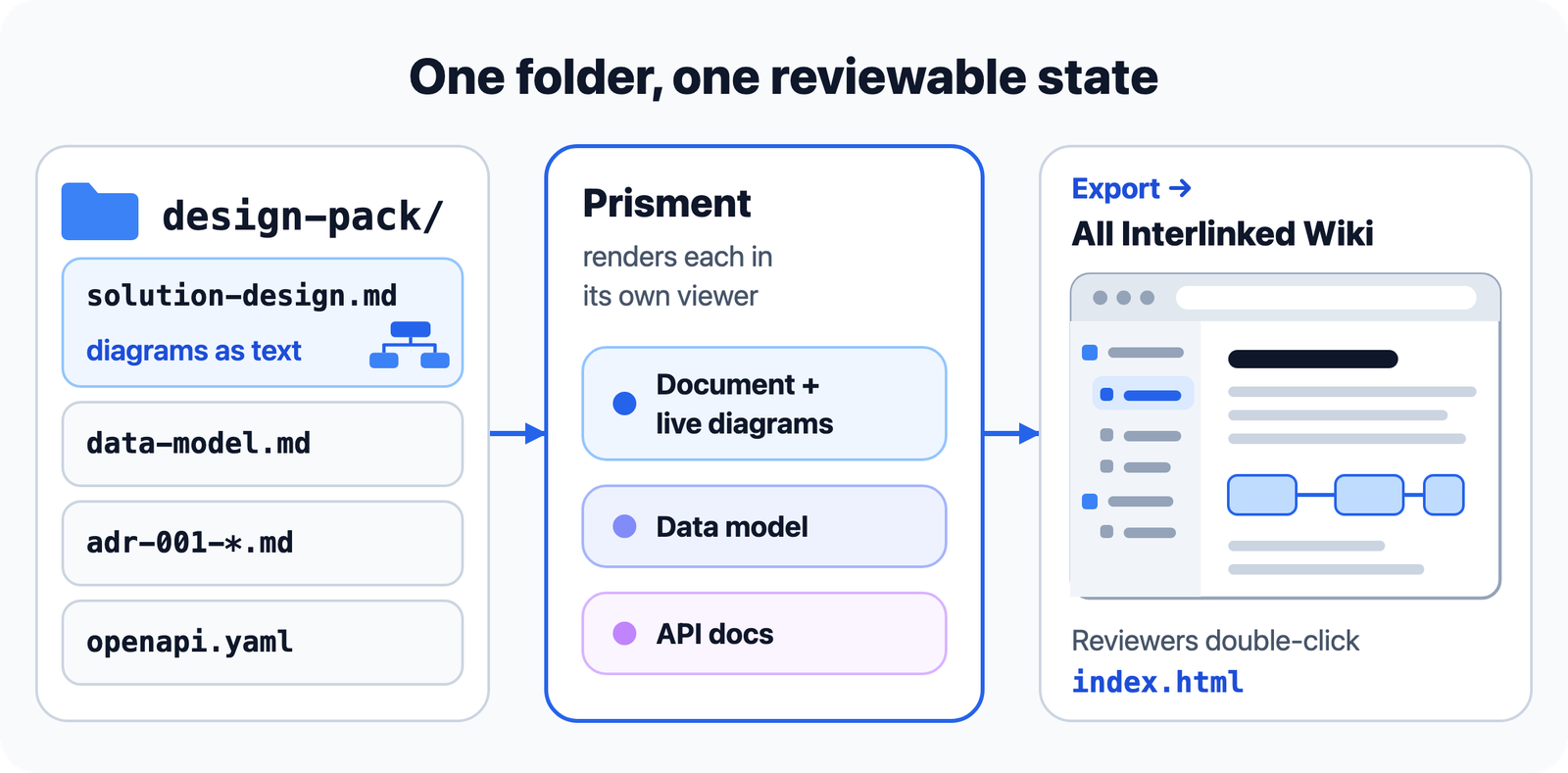
Five or six artifacts that normally live in five or six tools — and as plain files in one folder they become one reviewable state. It diffs, branches and reviews in git like the code it describes.
| Artifact | In the pack | Usually lives in |
|---|---|---|
| Solution design | solution-design.md |
A wiki |
| Context and flow diagrams | Mermaid blocks in the document | Drawing-tool exports |
| Data model | data-model.md |
A third tool |
| Decision log | adr-001-*.md |
Wiki child pages |
| API contract | openapi.yaml |
A spec editor, or a repo nobody browses |
The catch has always been reading it: a folder of .md and .yaml is the right storage and the wrong reading experience. That is the part Prisment supplies.
2. How does the design document read?
A Mermaid block inside the Markdown renders as a real diagram with pan, zoom and fullscreen — not a picture, and not a code fence the reader compiles in their head. The diagram is the same text the document is written in:
flowchart LR
  SF[Storefronts] --> API[Order API]
  API --> Q[(Order events)]
  Q --> ORCH[Orchestrator]
  ORCH --> WMS[Warehouse]
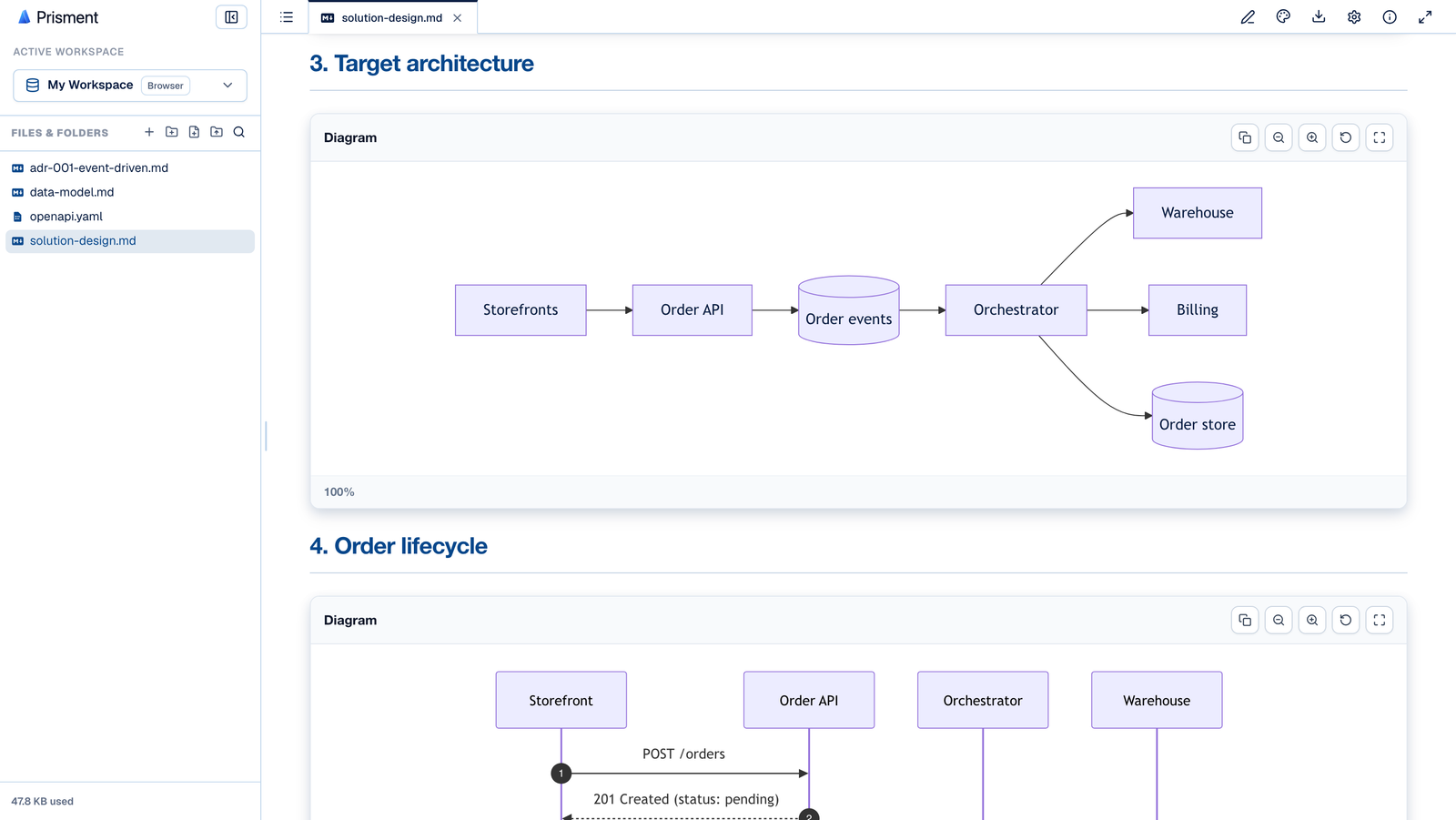
That matters most the next time the design changes: a diagram that is text is edited in the same pass, review and commit as the paragraph above it, instead of going stale in someone's drawing tool. To make it move, see animated Mermaid diagrams.
3. How does the API contract read?
One top-level key decides it: a YAML or JSON file with openapi: or swagger: at its root renders as browsable API documentation, and any other YAML renders as a read-only code view. The spec is parsed in your browser and never sent to an external Swagger service.
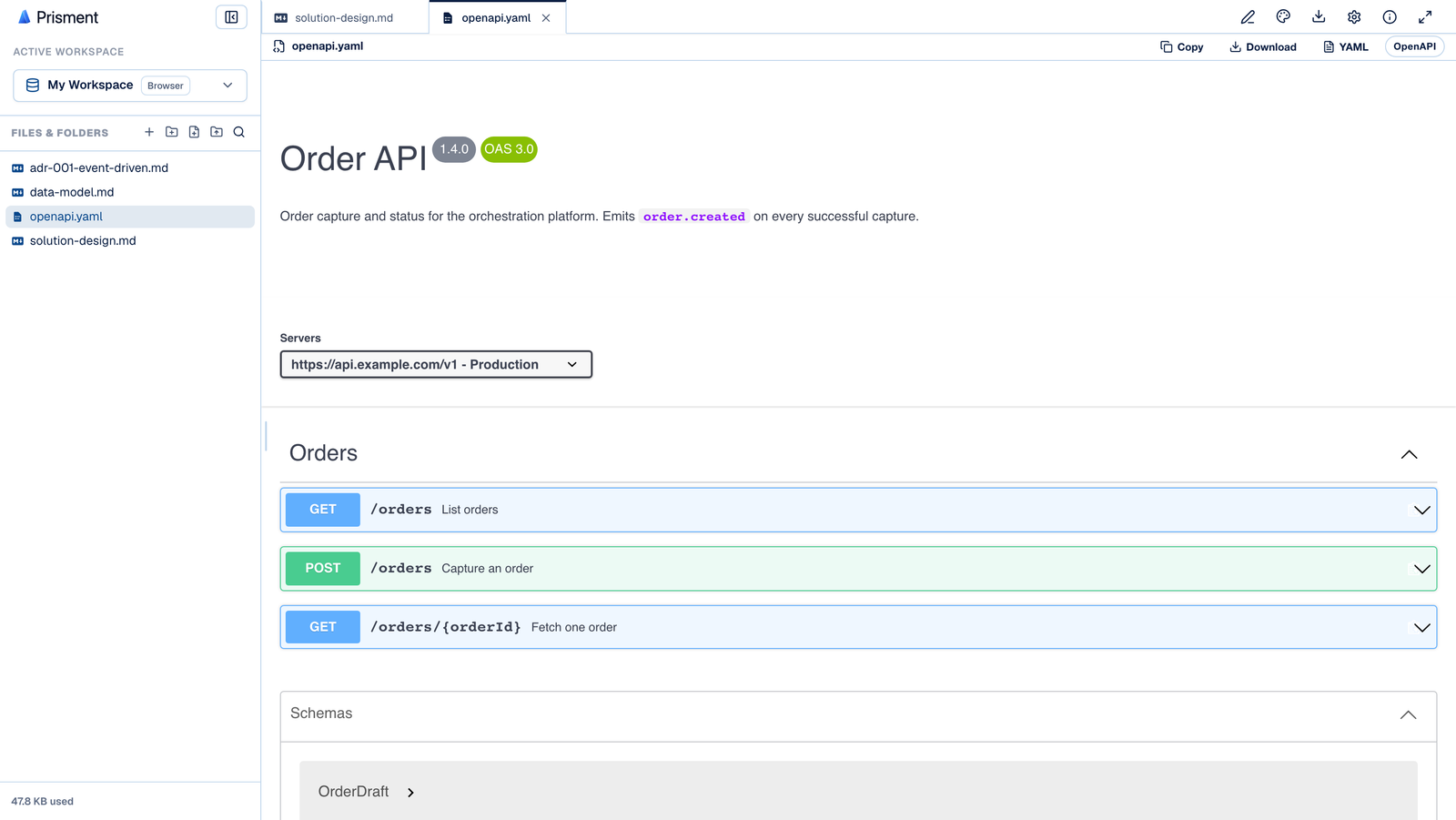
Operations expand in place to parameters, request bodies, responses, schemas and examples, and the viewer keeps the last valid version on screen while an edit leaves the spec briefly invalid. Details: OpenAPI and Swagger.
4. How do reviewers get it without the repository?
Export the folder as All Interlinked Wiki: every document becomes a page, the contract becomes interactive API docs, links are rewritten, and a sidebar tree navigates the pack. Reviewers double-click index.html; nothing is installed and nothing runs on a server.
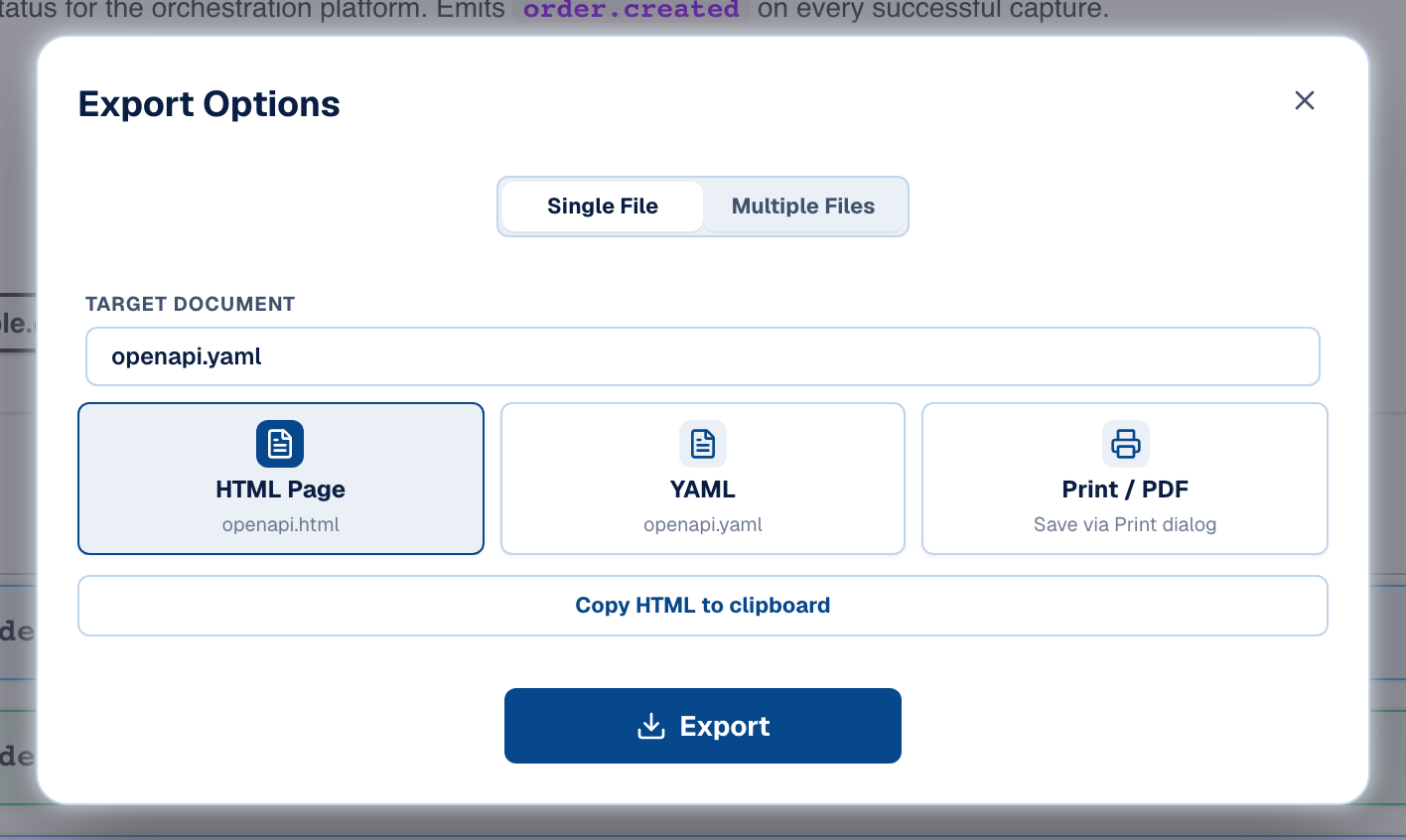
The other export shapes suit other hand-offs; sharing Markdown as HTML, a wiki or a PDF compares them.
5. Where does review come in?
A design pack is what an AI agent builds from, so the pack is where people should decide. Start a review over the folder: comment on a passage or a diagram, see what changed since the last read, approve the exact versions, and let Git or a shared drive carry the review to your team. If the first draft came from a terminal agent, mount its folder and read it as it lands.
6. Try it
Open the workspace to explore a booking-app project — its requirements, a flow diagram and an OpenAPI contract in one folder — or mount your own. Free, no account, nothing uploaded.
Frequently asked questions
Can I keep a design document, its diagrams and its API contract in one place?
Yes, as plain files in one folder. Prose and Mermaid diagrams live in .md files and the contract in an openapi.yaml, and Prisment renders all of them: Markdown as a styled document with live diagrams, and the YAML as browsable API documentation. Because everything is text, the whole pack diffs and reviews in git like the code it describes.
How does Prisment decide to render a YAML file as API documentation?
By one top-level key. A file with openapi: (OpenAPI 3.x) or swagger: (Swagger 2.0) at its root renders as browsable API docs; any other YAML falls back to a read-only code view. The YAML is parsed in your browser, never sent to an external Swagger service.
How do I share a whole design pack with reviewers who do not have the repo?
Export and choose All Interlinked Wiki. You get a ZIP in which every .md is a standalone HTML page, the OpenAPI file is an interactive API documentation page, links between documents work, and a sidebar tree lets a reader browse the pack. They double-click index.html — there is nothing to install.